The Ultimate PoseMyArt Toolkit: Discover Every Feature for Flawless Posing
PoseMyArt can help you find the best pose references you need for your art. Whether you’re a beginner or a pro at using it, it’s always best to know every tool in your PoseMyArt kit, so you can save more time finding the perfect pose reference, and spend more time on what matters- drawing!
- Hidden Gems
- Default Startup Workspace
- Directional Light
- Directional Light Tools
- 1. Light Intensity
- 2. Move (G)
- 3. Rotate (R)
- 4. Scale (S)
- 5. Show (H)
- 6. Lock
- Model Toolbar
- 1. Poses and Animations
- Poses
- Animations
- 2. Move (G)
- 3. Rotate (R)
- 4. Scale (S)
- 5. Switch Pose Sides (F/X)
- 6. Change Model
- 7. Save & Load Pose
- 8. Hand Poses
- 9. Groups Menu
- 10. Duplicate (Shift+D)
- 11. Color
- 12. Show (H)
- 13. Lock
- 14. Delete (Del)
- Upper Left Toolbar
- 1. Add Models
- 2. Add Props
- 3. Premade Scenes
- Open Images Library
- 4. Add Image (Premium)
- 5. Camera
- Field of View
- Save Camera Positions
- Rename Camera Positions
- 6. Export
- Upper Right Toolbar
- 1. Save & Load
- Save to File/ Load from File
- Replace Current Scene
- Export Scene to OBJ
- 2. Account
- 3. Settings
Hidden Gems
Before we get to the main meat of this guide, know that people sometimes overlook some of the best tools you can use to create dynamic poses in PoseMyArt. They’re somewhere down there in this article, alright, but if you want a quicker way to study them, click here. If you want to review your tools in order, read on.
Default Startup Workspace
When you open the PoseMyArt app, this is what you’ll see in your web browser. I’ve labeled the major elements, especially the tools and options icons that you will be using while creating your 3D pose reference.

Don’t worry, you won’t have to keep coming back to this guide while you’re using the PoseMyArt app to refer to the tools. Tool names pop up when you hover your cursor over an icon.
Directional Light
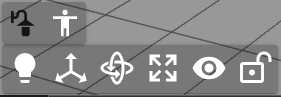
This is the first icon on the toolbar on the bottom left of your screen, right beside the Model icon. Clicking it opens up another toolbar below it, giving you options and settings for your light that you can play around with.
Pro Tip
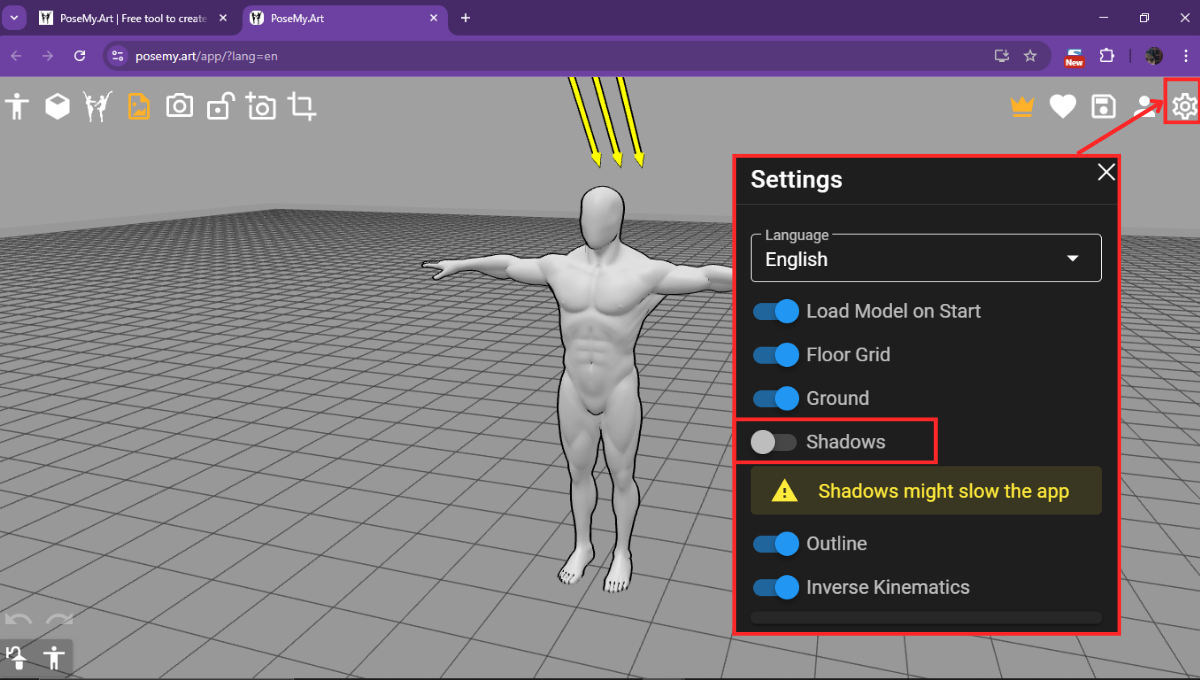
You can also turn on the “Shadows” slider under settings to make more shadows visible.
Directional Light Tools
These tools are displayed on the sub-menu that appears after clicking the Directional Light icon. Here are the tools you can use that are specific to controlling your directional light source:
1. Light Intensity
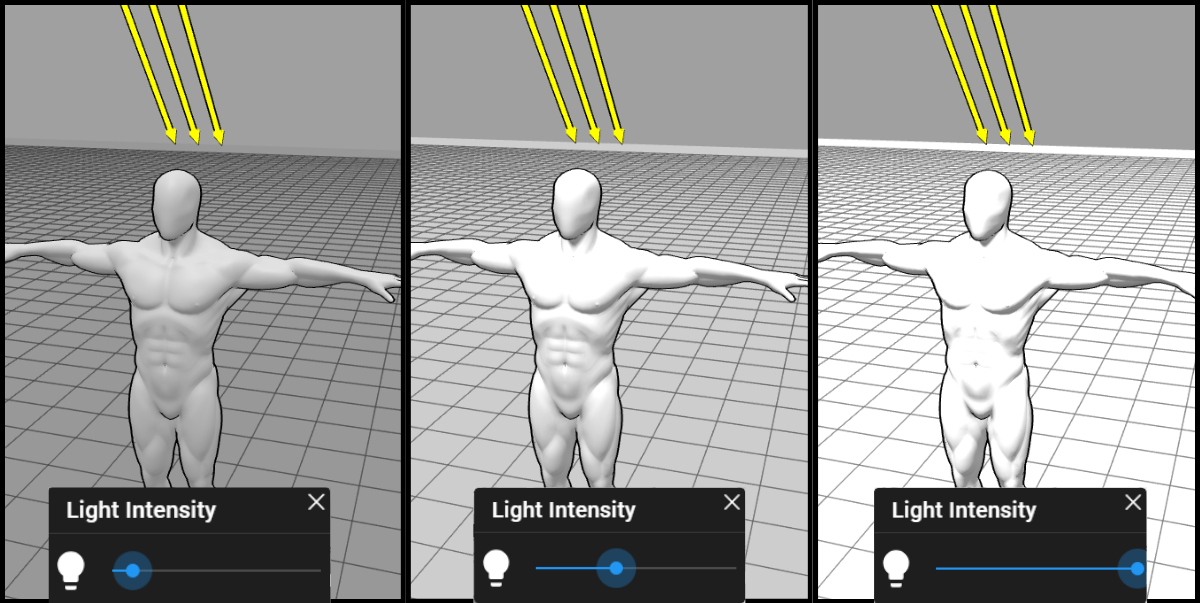
 This handy slider lets you adjust how bright or dim your light source is. Play around with it to create dramatic shadows or soft, even lighting!
2. Move (G)
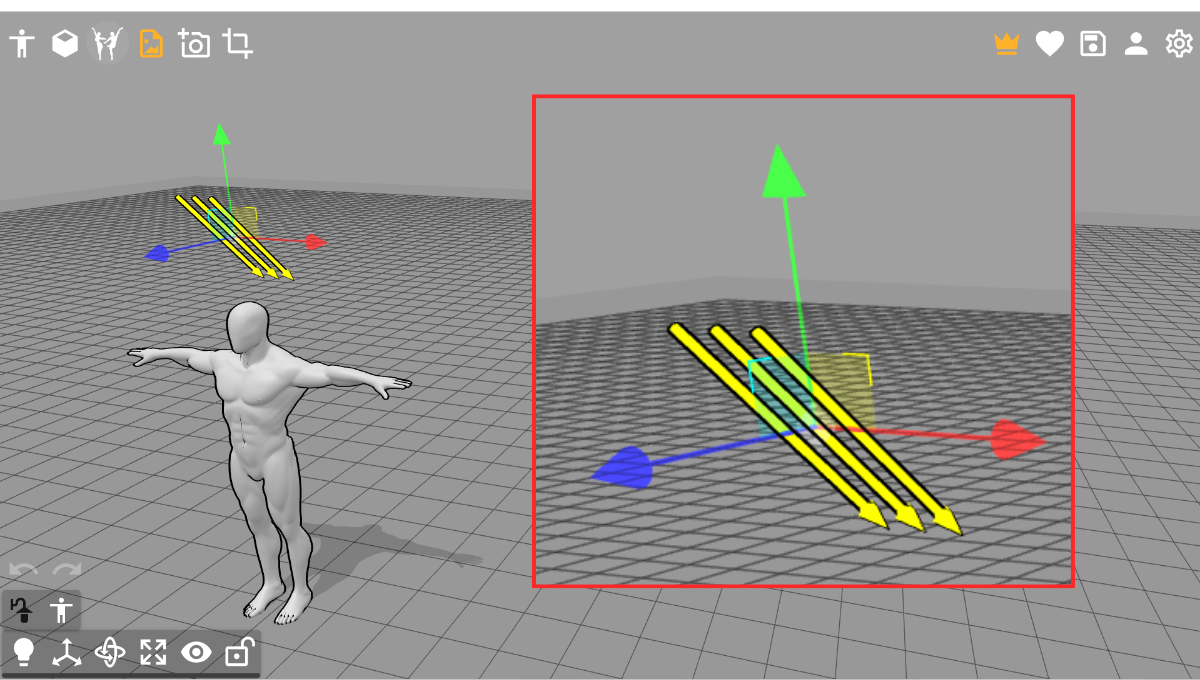
 This tool (activated by pressing ‘G’) lets you shift your light source around the scene. When you use it, you’ll see colorful XYZ axis arrows and planes appear around your light source. These visual guides allow you to precisely position your light for the perfect illumination.
3. Rotate (R)
 Need to change the direction of your light? The ‘Rotate’ tool (hit ‘R’) activates circles and rings around the light source when you click it, giving you precise control to rotate the light and cast shadows exactly where you want them.
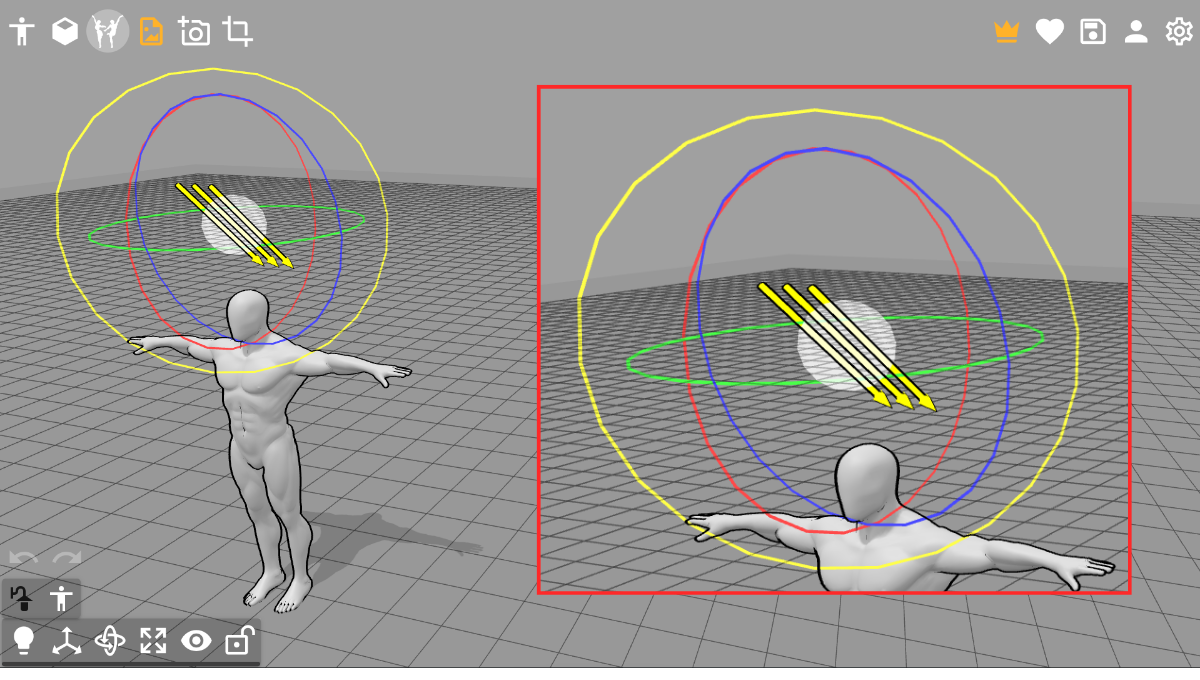
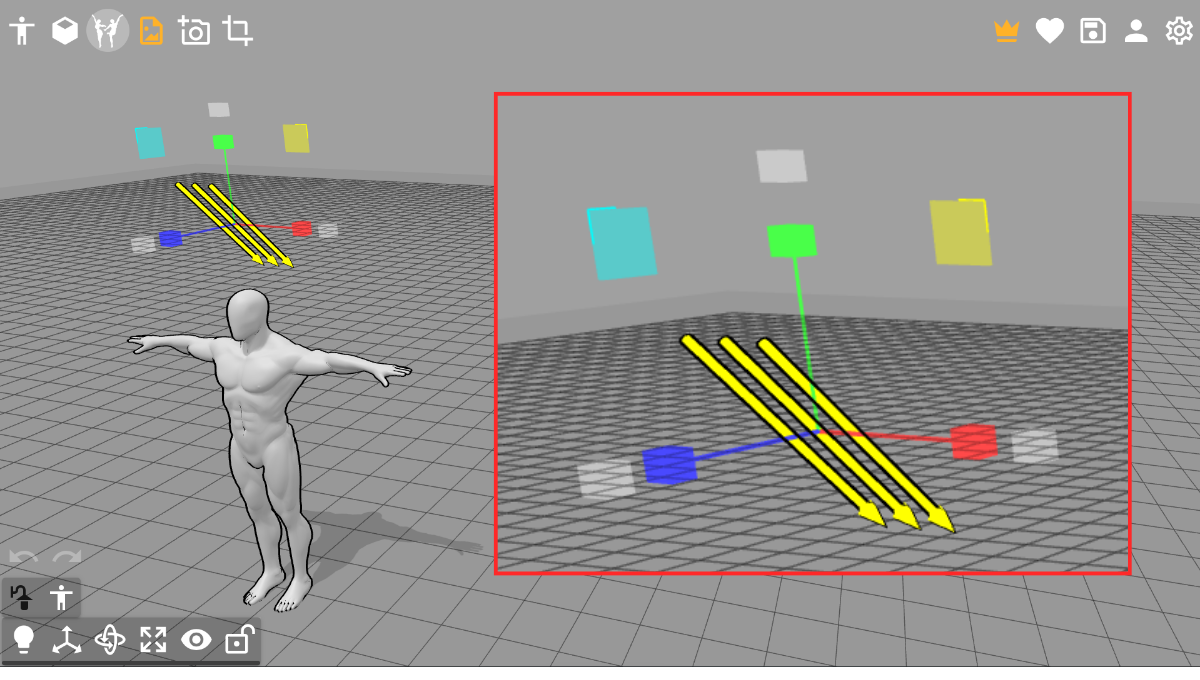
4. Scale (S)
 This tool lets you scale the light source itself. Clicking the icon brings up boxes on the XYZ axes for scaling in a single direction, or colored squares on certain planes for scaling in two directions. The white boxes allow for proportional scaling.
5. Show (H)
 This toggles the visibility of the light source (those three yellow arrows) in your workspace. Even if the light source arrows aren’t visible, its effects on your models and props are still active, so you can keep your workspace clean without losing your lighting setup.
6. Lock
 This handy tool prevents accidental movement of your light source. Once you’ve got your lighting perfectly set, click ‘Lock’ to keep it in place while you work on other elements of your scene.
Model Toolbar
Once you click on the model button on the toolbar on the bottom left of your screen, the main toolbar will appear. This is where you’ll find all the essential tools for customizing and posing your model. Get ready to explore precise adjustments!

Note:
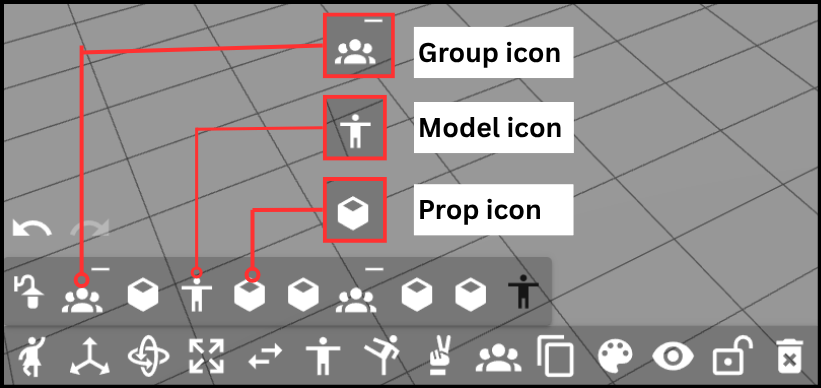
An icon for each model and will appear on your main toolbar beside the Directional Light icon. A group of heads for the Group icon, T-Pose Person for a Model icon, and a cube for any props.
1. Poses and Animations
 In my experience, this is the button you’ll probably use the most on the app. While PoseMyArt offers full customization for posing limbs and props, starting from scratch can be a bit tedious. This section is your go-to for getting a quick start or finding inspiration!
Poses
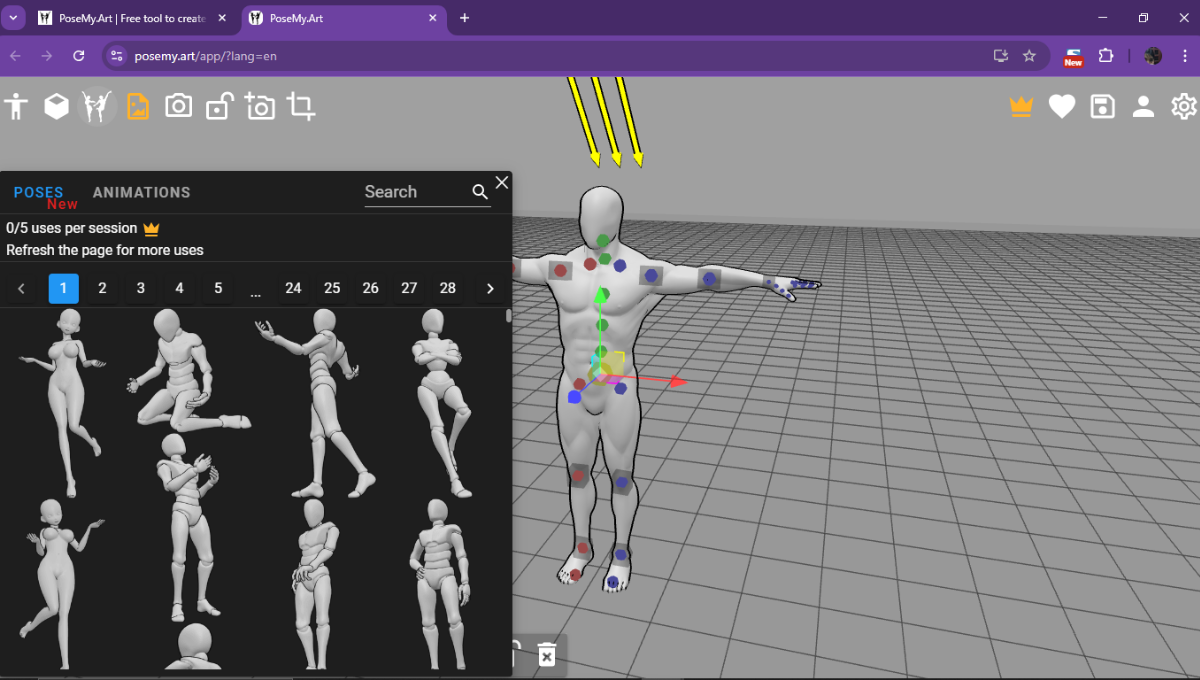
Here, you’ll find a huge collection of static, non-moving poses ready for your models. Just click on a pose from the selection window, and it’ll instantly snap onto your model. There are hundreds of pre-made poses to try out.
Tips
- Your model doesn’t have to match the one in the pose library for it to work. Any human pose will snap to any type of human model.
- These pre-made poses are awesome starting points; pick one close to your idea and tweak it. For free users, remember you get five uses per session, but a quick page refresh resets that count!
- There is a Search Bar on the upper right portion of your Pose Selection Window. Use this to make your search for your desired pose easier.
Animations
This is truly a hidden gem in PoseMyArt, especially with its extensive library of dynamic, moving scenes. You can find everything from intense fighting sequences to practical actions like CPR. It’s perfect for studying motion or adding a unique flair to your scene.
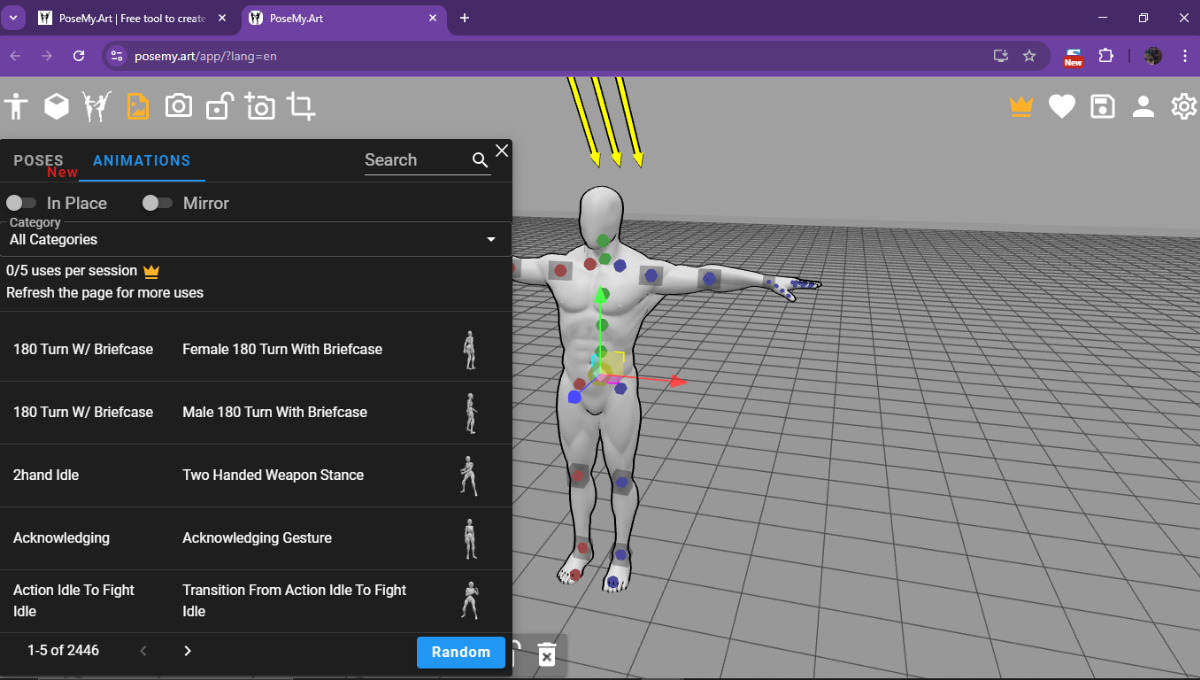
How to:
- Click on/ load up the model that you want animated.
- On the Model Toolbar, click on the first icon, Poses and Animations. Click on the Animations tab on the pop-up window.
- Search for or select the animation that you want to apply to your model.
In Place
If you don’t want your model twirling across your screen, simply check “In Place.” This anchors your model to one spot, so it performs the animation right where it is. It’s great for focused study without having to chase your character around.
Mirror
Just like it sounds, this mirrors your model’s action! If your model was throwing a punch with its right hand, clicking “Mirror” will instantly switch that action to the left hand. It’s super useful for quickly creating symmetrical or opposite poses.
Pro Tip
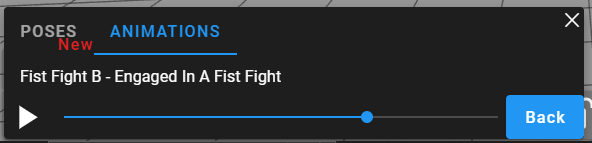
When you select an animation, a control box appears on the bottom left of your screen. This box shows the animation’s name and description, and you can play, pause, or even scrub through the action using the blue bead. This lets you pause at any exact moment to adjust your camera angle or zoom for the perfect shot.
2. Move (G)
Need to shift your model around the scene? The “Move” tool, activated by pressing ‘G’, is your best friend. It gives you precise control over your model’s position in 3D space.
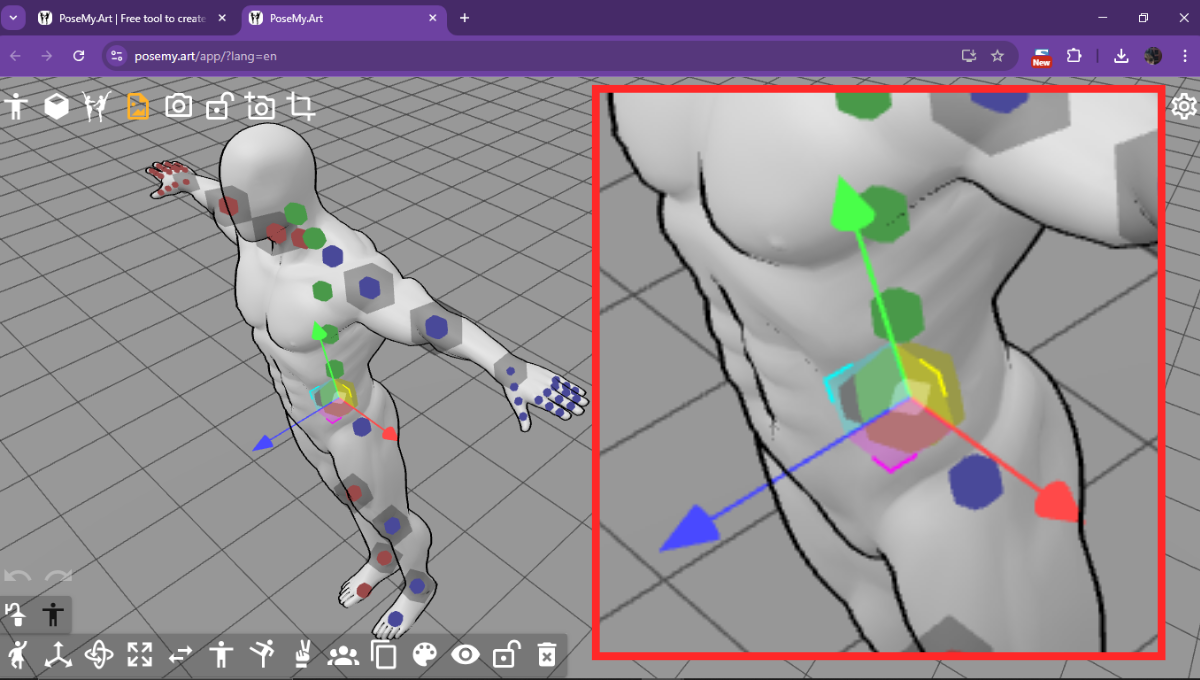
When you activate the ‘Move’ tool, you’ll see colorful arrows and planes appear around your model. These are your keys to moving your model precisely in specific ways.
XYZ Axis Arrows
When you activate the “Move” tool, you’ll see colorful arrows pop up around your model. Click and drag on one of these arrows to move your model along that single line.
Red (X-axis) moves side-to-side, Green (Y-axis) handles up and down, and Blue (Z-axis) pushes your model forward and back. It’s like having a little joystick for each direction!
Tips
I find the use of the arrows quite useful. Since models are always loaded onto the workspace based on the standard starting point, I like to pose my first model there and use it as a base point. I then move any models I add on using the arrows, to make it easy to gauge how far or in what direction I need to place the model.
Planes
For more fluid movement, check out the colored squares between the arrows. Clicking and dragging on these allows you to move your model along two axes at once.
The Yellow square (XY Plane) lets you move side-to-side and up-down, Cyan (YZ Plane) handles height and depth, and Magenta (XZ Plane) moves side-to-side and forward-back. This is perfect for quickly repositioning your model on a surface without worrying about its height.
3. Rotate (R)
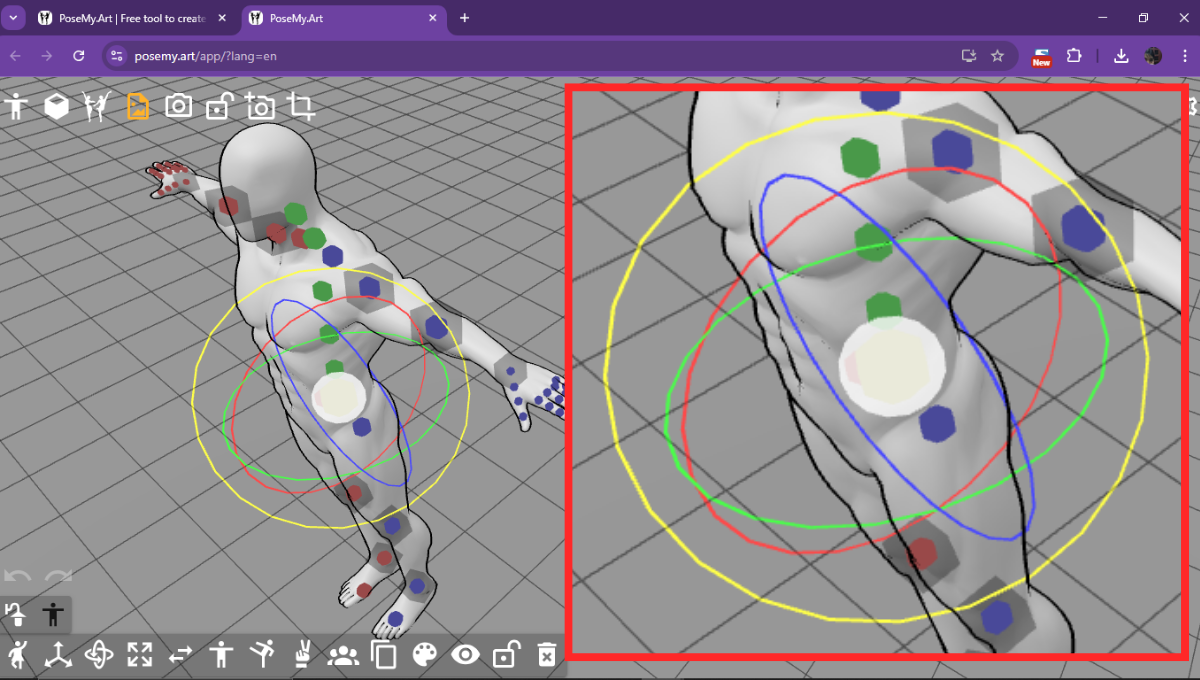
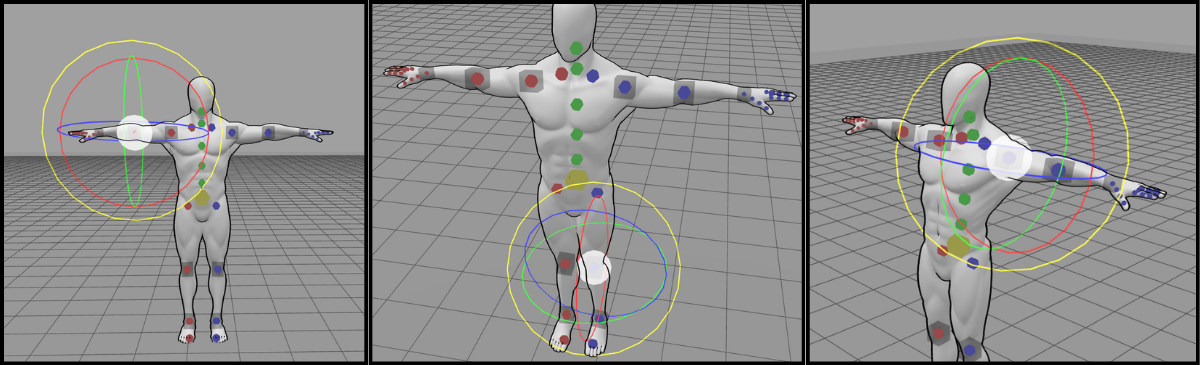
Ready to make your model strike a pose? The “Rotate” tool (just hit ‘R’) brings up a set of rings around your model, each offering a different way to spin and twist. Just click and drag your preferred circle to get the perfect angle.
How to: Rotate your WHOLE model:
- Click on the model/ group/ object that you want to rotate to bring up the joint manipulation points.
- Hit the ‘R’ key to bring up the rotation rings that will rotate your WHOLE model, OR, you can click on the yellow manipulation point that you can find in your model’s lower abdomen or the center of an object.
- Click and drag any one of the rotation rings or the white ball to rotate your model/ group/ object.
Green Circle
Imagine your model doing a graceful pirouette! This circle rotates your model horizontally, like a spinning ballerina.
Blue Circle
Want your model to do a flip? The blue circle lets your model perform front or back flips, depending on which way you drag your cursor.
Red Circle
This rotation is like a cartwheel, spinning your model sideways. It’s great for adjusting shoulder or hip angles.
Yellow Circle
This one’s a bit of a trickster, but super useful! The yellow circle is camera-based, meaning it rotates your model relative to your current camera view. It’s perfect for fine-tuning when the other axes don’t quite give you the angle you need.
White Ball or Center Circle
This is your free rotation zone! Click the white ball in the center and drag your cursor in any direction for complete freedom. Once you get the hang of it, you can rotate your model any which way you want, making those dynamic poses a breeze.
How to: Rotate a SPECIFIC joint:
- Click on the model/ group/ object that you want to rotate to bring up the joint manipulation points.
- Click on the colored joint point that you want to rotate. This will bring up the rotation rings around that specific joint.
- Click and drag any one of the rotation rings or the white ball to rotate your model/ group/ object.
Reset Joint to Original Position
When you’ve pulled, pushed, and rotated a joint, but can’t seem to get it right, you might want to start from scratch. When you want to reset a joint to the original standard starting T-pose.
How to:
- Select the model with the joint you want to reset.
- Click on the model to bring up the joint points and the Model Toolbar. OR Click on the model’s icon on the lower left to bring up the joint points and the Model Toolbar.
- Choose the joint point (colored points) that you want to reset to bring up the rotation rings.
- On the Model Sub-Menu, click on the Save & Load Pose icon.
- In the Save & Load Pose menu, click on the Reset Selected Joint button.
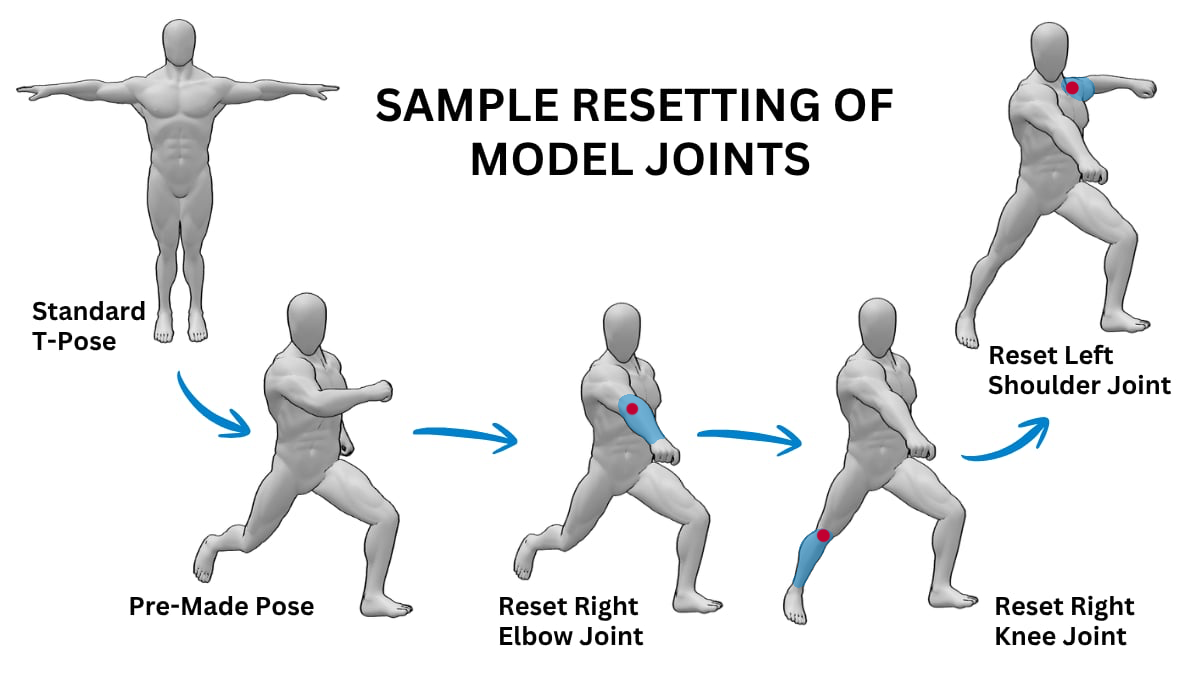 Note: Clicking the Reset Selected Joint button only resets the SELECTED joint, NOT the whole model.
4. Scale (S)
Sometimes you need a giant, sometimes a tiny fairy! The “Scale” tool (press ‘S’) is how you resize your model. It’s not just about making things bigger or smaller, but also about stretching them in specific ways.
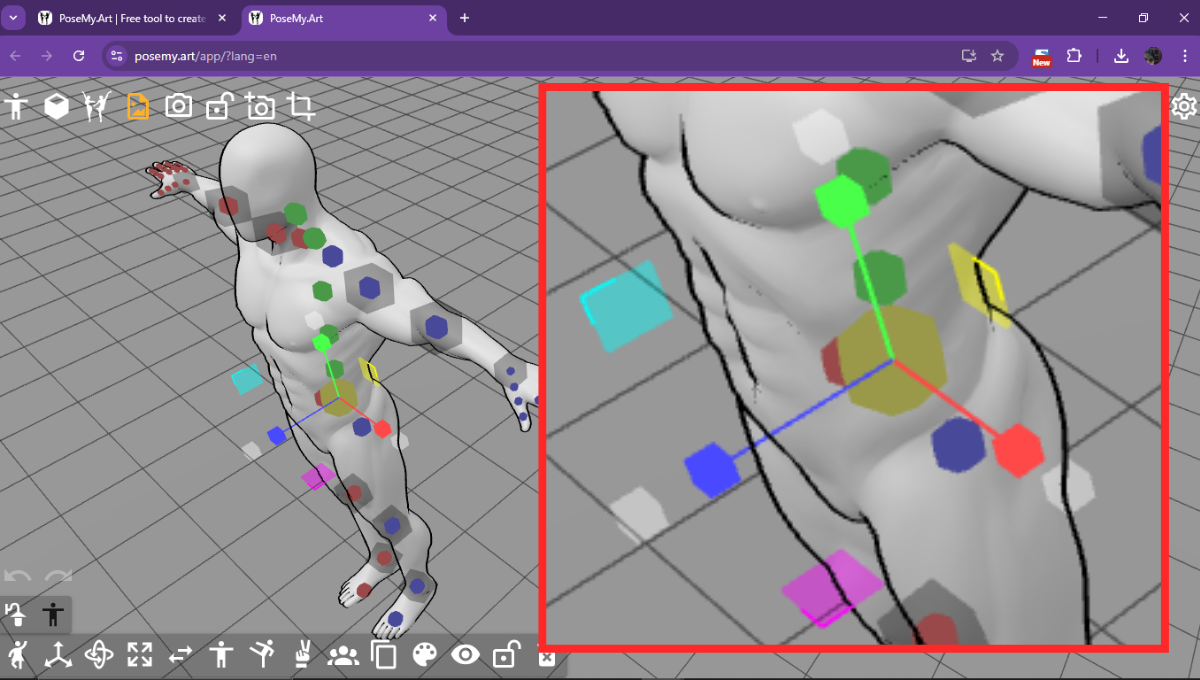
White Boxes (to scale)
You’ll spot white boxes at the end of each axis arrow when “Scale” is active. Clicking and dragging any of these boxes will resize your model proportionally, keeping everything in perfect balance. Pick the box that’s most convenient for your dragging direction.
Stretch in One Direction
Need to make your model taller, wider, or deeper without affecting other dimensions? Use the colored boxes on the axes! Red (X-axis) stretches side-to-side, Green (Y-axis) stretches up-down, and Blue (Z-axis) stretches forward-back. It’s like having a digital clay sculptor.
Stretch in Two Directions
For more advanced stretching, grab the colored planes. Yellow (XY) stretches side-to-side and up-down, Cyan (YZ) stretches up-down and forward-back, and Magenta (XZ) stretches side-to-side and forward-back. This is fantastic for creating unique body shapes or stylized characters.
5. Switch Pose Sides (F/X)
 This handy tool, activated by ‘F’ or ‘X’, mirrors the entire model’s pose. It’s a lifesaver when you’ve perfected a pose on one side but need it exactly the same, just flipped!
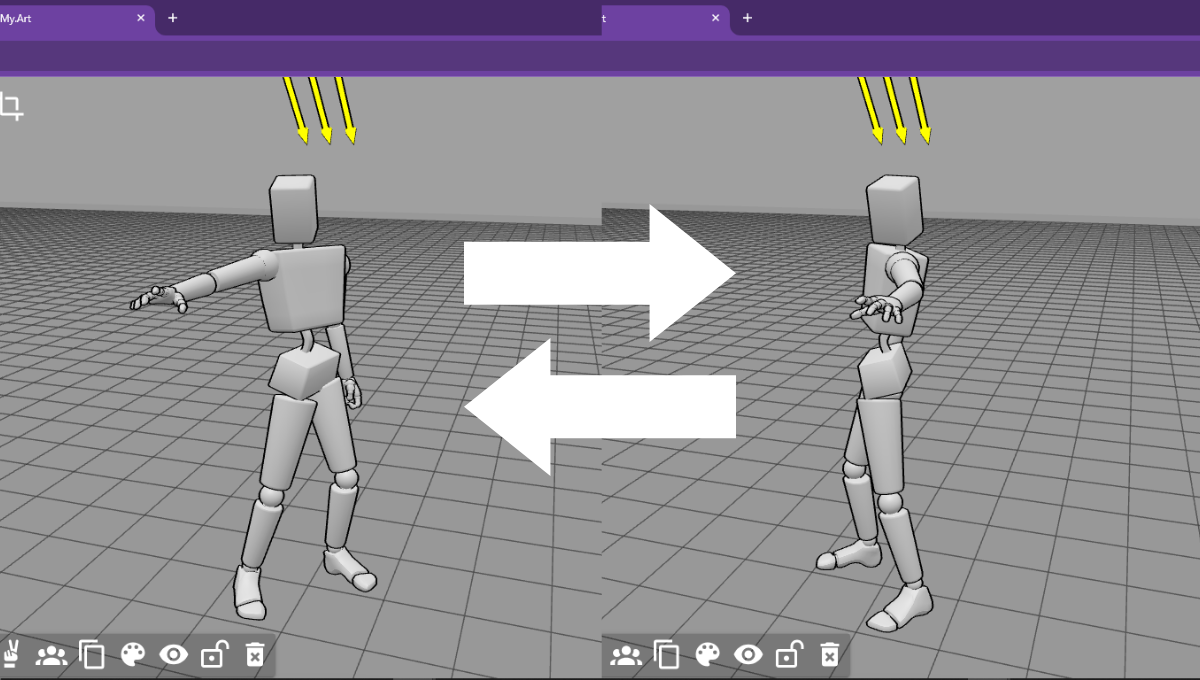
How to:
- Click on the model that you want to switch pose sides.
- Click the Switch Pose Sides icon (two arrows) on the Model Toolbar. OR Hit the ‘F’ or ‘X’ keys.
Note: This switch pose sides feature only works for human and humanoid models.
6. Change Model
 Ever started with one model and wished you could see that same pose on a different one? The “Change Model” button is your magic wand! Clicking it brings up a menu of various models, from realistic to stylized. Select a new one, and it’ll replace your current model, keeping the exact same pose.
Tip
Let’s say you’ve posed a standard realistic muscular male model beautifully, but you want to understand the underlying structure. You can “Change Model” to a “Blocky Bot” or “Stick Bot” to see a simplified breakdown of the pose. Or, if you started with a “Blocky Bot” for quick posing, you can switch to a “Realistic Muscular Male” to see if the pose looks natural on a fleshed-out character.
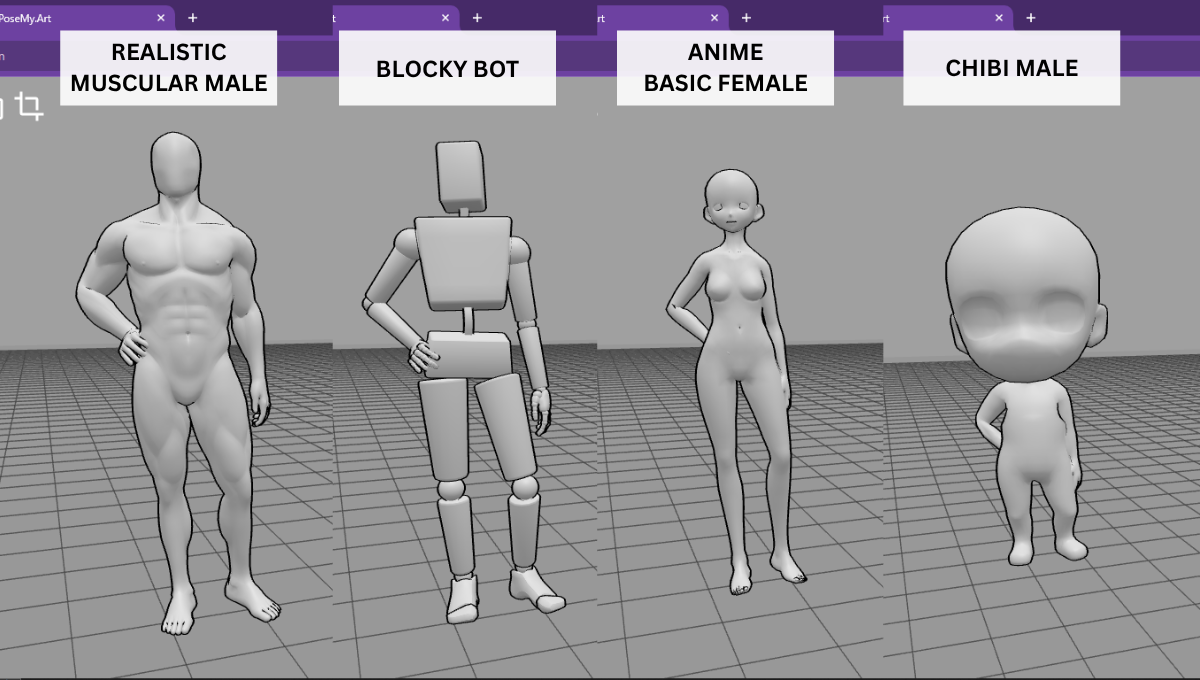 You can also try the change model tool to see how the pose looks on other different models, like an Anime Basic Female or even a Chibi Male.
How to:
- Click on the model you want to change.
- Look for and click on the the Change Model icon on the Model Toolbar.
- Choose on the model type that you want to change your selected model into.
7. Save & Load Pose
 Don’t let your hard work disappear! PoseMyArt offers several ways to save and load your custom poses, making your workflow incredibly efficient. When you click on the Save & Load Pose button on the Model Toolbar, this is the menu that it pulls up.
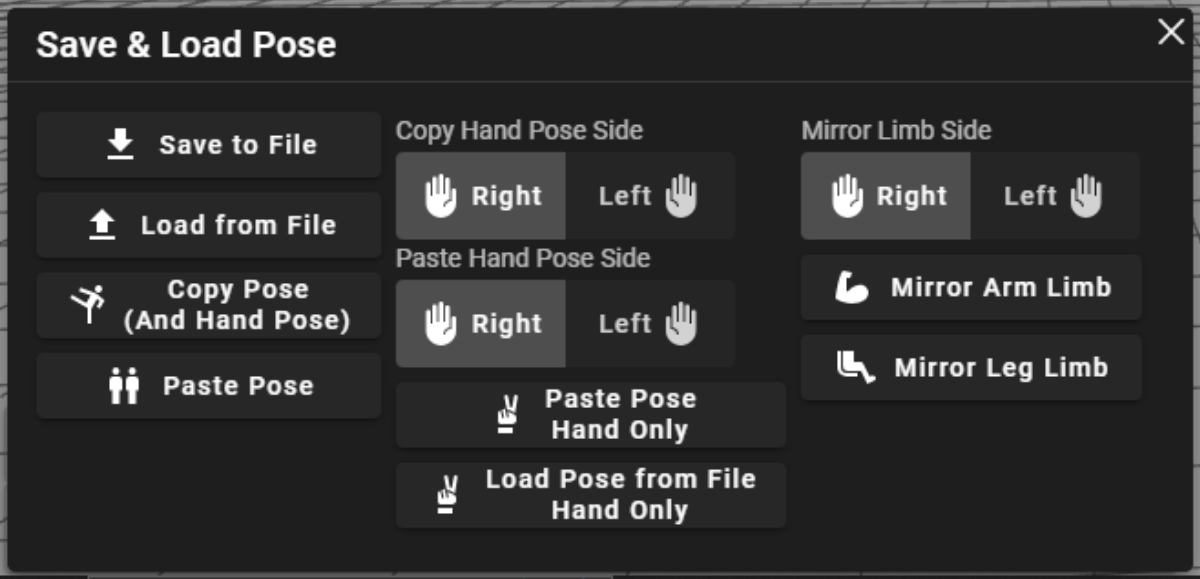
Save to/Load from File
This lets you save your entire model’s pose to your computer as a file, and load it back later. Perfect for archiving your favorite creations!
Copy/Paste Pose
Quick and easy! Copy a pose from one model and paste it onto another, or even paste it back onto the same model after making changes. Make sure to double check the model you have selected. If you make a mistake, there’s always undo.
Copy/Paste Hand Pose Side
Focus just on those intricate hand poses! You can copy the pose of a single hand (left or right) and paste it onto the corresponding hand of another model, or even mirror it.
Paste Pose Hand Only
This is great when you only want to apply a hand pose from a copied full pose, leaving the rest of the body untouched.
Load Pose from File Hand Only
Just like loading a full pose, but specifically for a hand. If you have a collection of amazing hand gestures, this is how you apply them.
Mirror Limb Side
Need to quickly flip a single limb’s pose? This option lets you mirror the pose of an arm or leg, independently of the rest of the body.
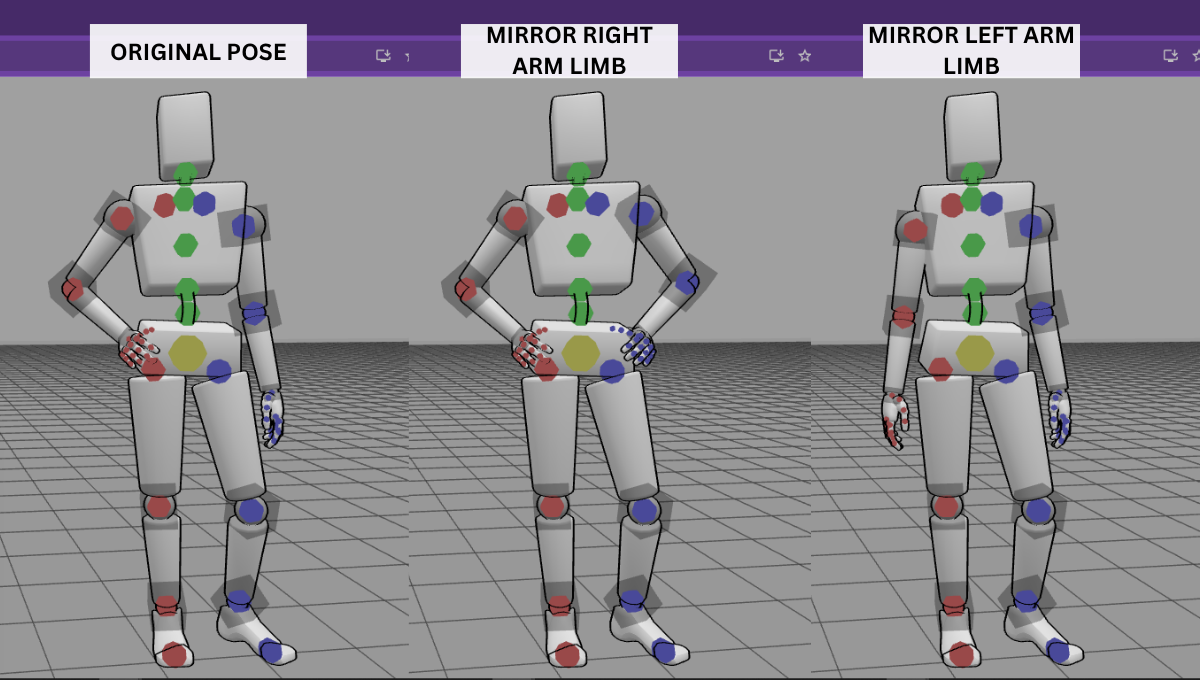
Mirror Arm Limb / Mirror Leg Limb
These are specific shortcuts to mirror just the arm or leg you have selected. Super precise for those detailed adjustments! Note, when you choose right or left, this refers to the model’s right or left side, not yours.
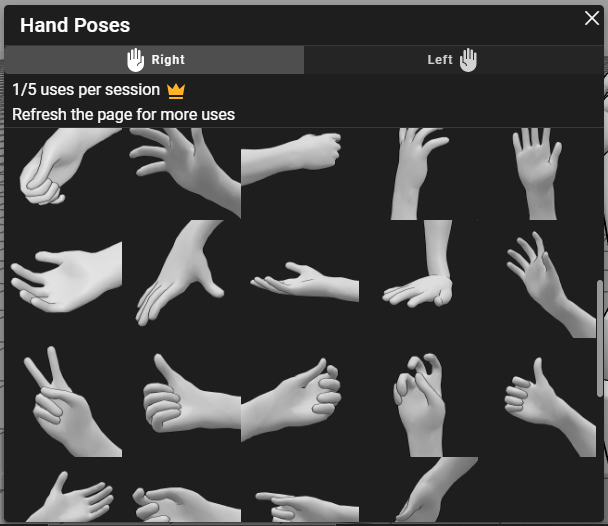
8. Hand Poses
 This dedicated menu gives you a library of pre-made hand poses. No more struggling with individual finger joints! Just pick one and apply it. Note that you can switch between the right and left hand on a toolbar near the top of the hand poses menu.
9. Groups Menu
 When you’re working with multiple models or props, organizing them into groups can save you a ton of time. The “Groups Menu” helps you manage complex scenes.
Say you’ve dressed up your model with accessories and props; you can group them all together. Once you select that group, you can move, rotate, and scale them as one unit without losing their arrangement.
It can get a little complicated, so here’s a step-by-step guide to help you with how it works.
How to:
-
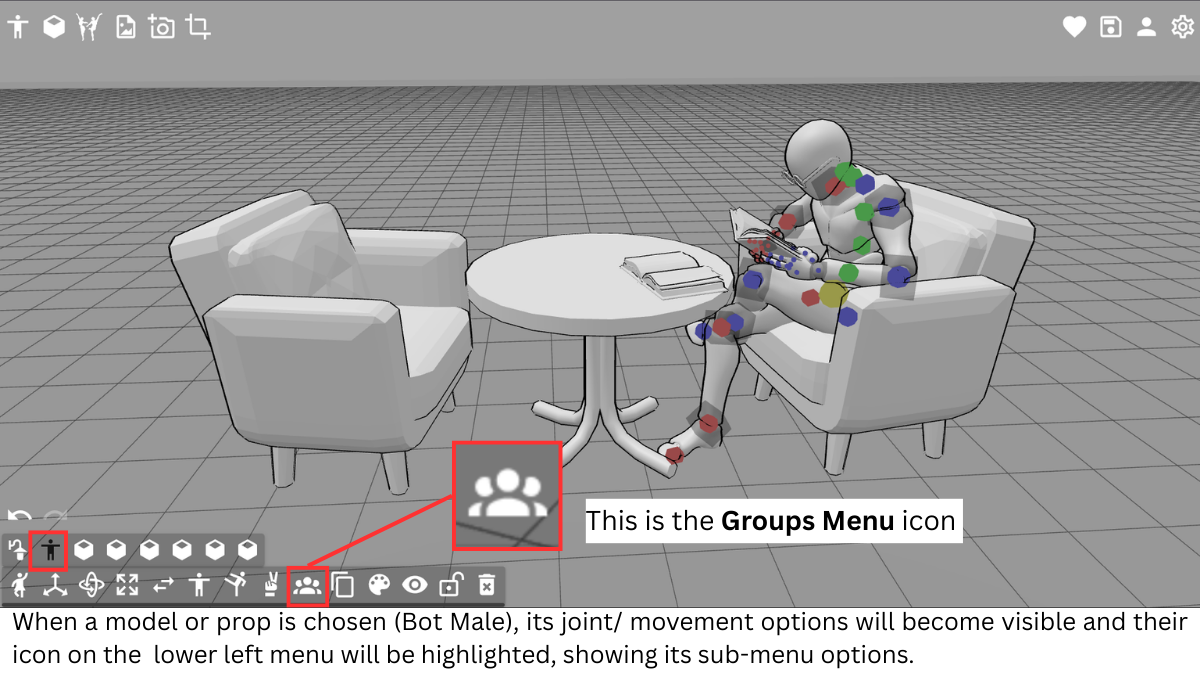
Select the model or prop that you want to put in a group by clicking on its icon on the bottom left (you can also click on the model or prop itself); this will open up that model’s sub-menu. Select the Groups Menu.
-
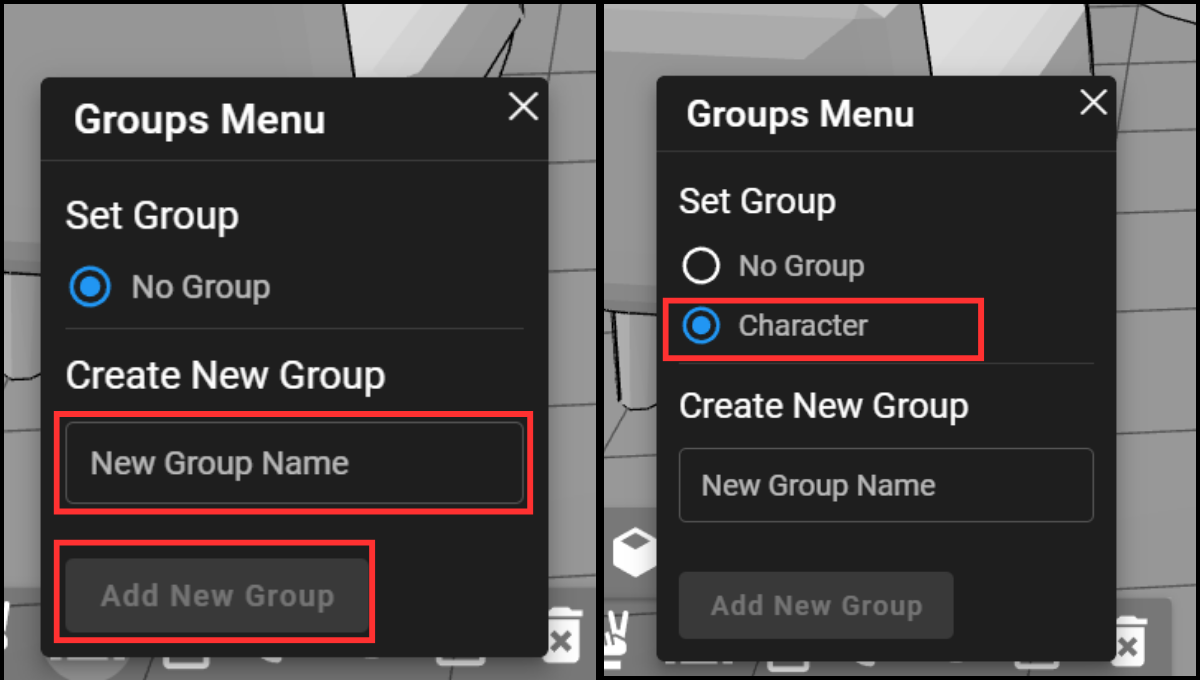
Type a name in the “New Group Name” box, then click the “Add New Group” button. The group name should now appear under Set Group. For this sample, I used the group name “Character”.
-
Be sure to select the circle beside the group name you want the model to be in, as it isn’t automatically added. Once you highlight that circle, the model is in that selected group.
-
If you want to add more models or props to a certain group, repeat the process (Select the model > Groups Menu > highlight the circle with the desired group). If the group name doesn’t exist yet, you can type it in the “Create New Group” box and click “Add New Group”.
-
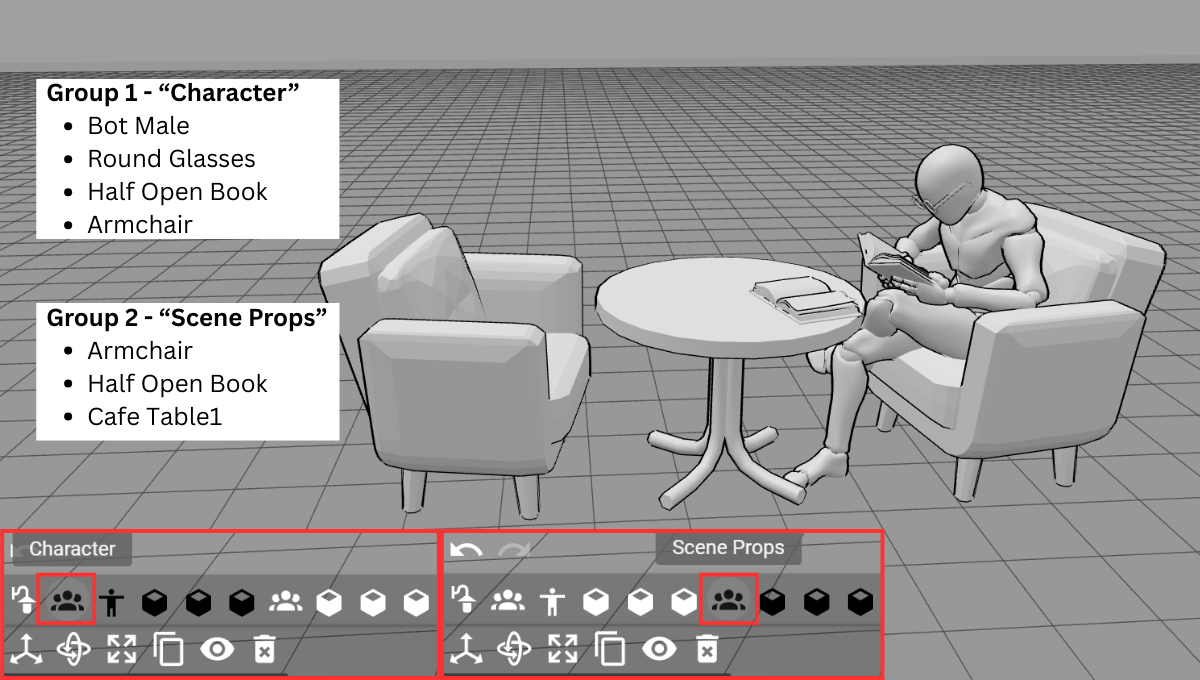
Each group created will duplicate this group icon on the bottom left menu. Hovering your mouse over the icon will show the name of the group. To move (rotate or scale) a group as one, click on the group icon.
Collapse Groups
You don’t have to worry if your groups have multiple models, objects, and props. By default, all the icons for these will be visible on the bottom left bar, but you can collapse the icons under a group to make it less cluttered.
How to:
- Look for the dash (-) above the group icon.
- Click on the dash (-) to collapse the icons. When you do, the dash will turn into a plus (+) sign.
- Click on the plus (+) sign again to expand the icons of the models included in the group.

Rename Groups
When you’ve created a group, you might have made a typo or want to rename it later on. Here’s how you can do it.
How to:
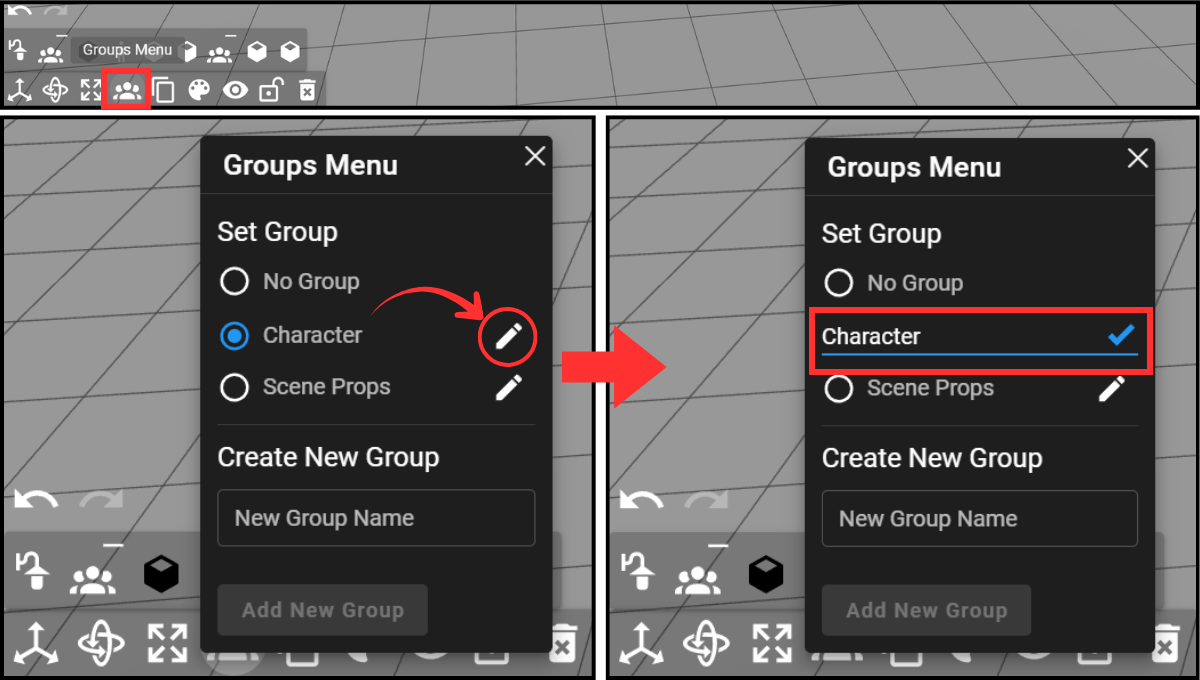
- Click on any one of the models that are in the group you want to rename. This will open the Model Toolbar.
- (Model Toolbar) Click on the Groups Menu icon to bring up the Groups Menu.
- Look for the group you want to rename under “Set Group”. You should see the pencil icon beside each group name.
- Click on the pencil icon to edit the name.
- When you’re done renaming, click on the check icon to apply the change.
 Note: Changing the name of one model in the group will automatically apply to all the models in the group. You don’t have to change the name for each and every manual manually.
Lock Groups
Locking your group means all the models and objects in the group will remain secure and in place. You will be able to move around your scene and edit any other models outside of your group without making any accidental edits to your locked group.
How to:
-
Click on the Scene Icon (on the bottom left toolbar) of your desired group to bring up the Scene Sub-Menu.
-
On the Scene Sub-Menu, click on the Lock Icon.
 Note: Toggle the padlock icon to lock and unlock a group.
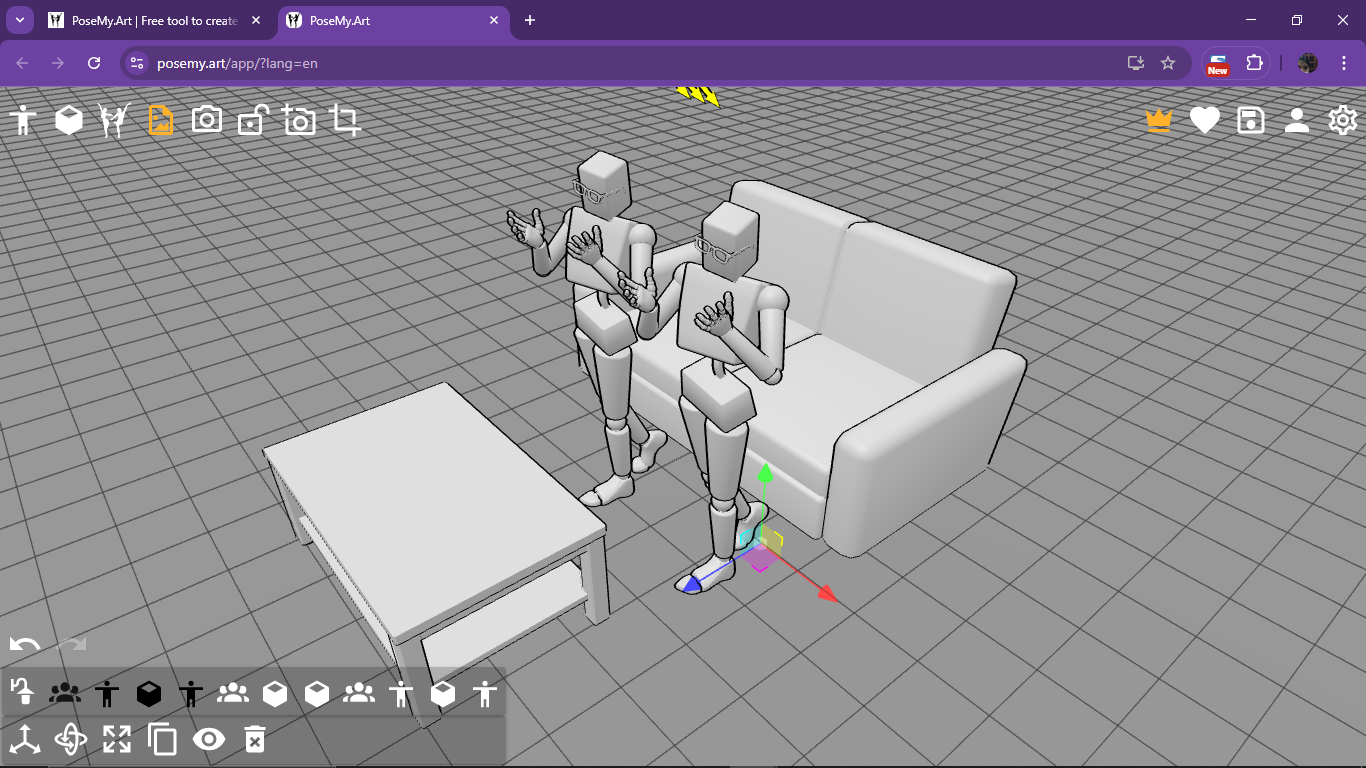
10. Duplicate (Shift+D)
 A classic shortcut! Select a model, prop, or a group and hit Shift+D to create an exact copy. This is invaluable for quickly populating a scene, especially if different models are using the same pose and/ or props.
Note, that if you want to duplicate an entire character with its accompanying props, be sure to select the “Group”, not just the single model or prop.
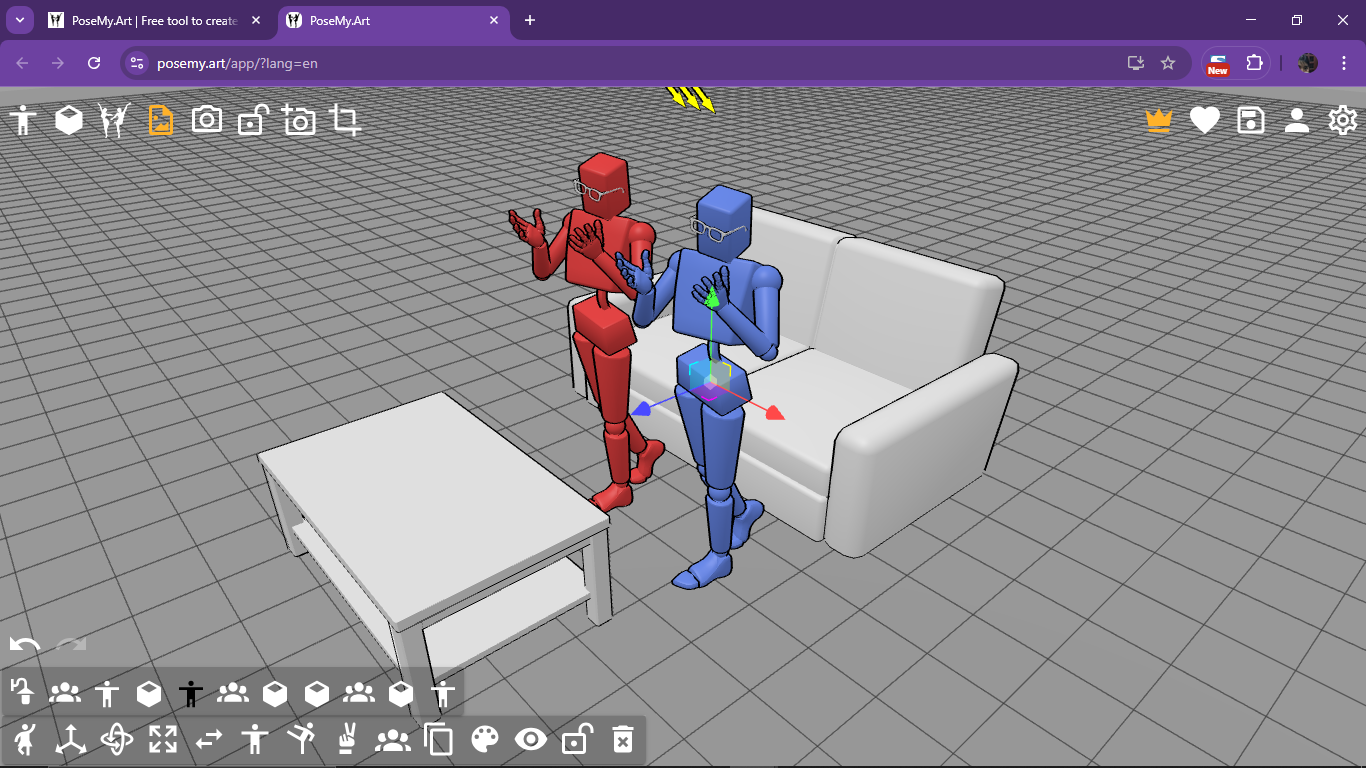
11. Color
 Time to add some vibrancy to your models! The “Color” tool lets you change the hue of your models and props. This is extremely useful when distinguishing them, especially when you have multiple identical models in a scene.
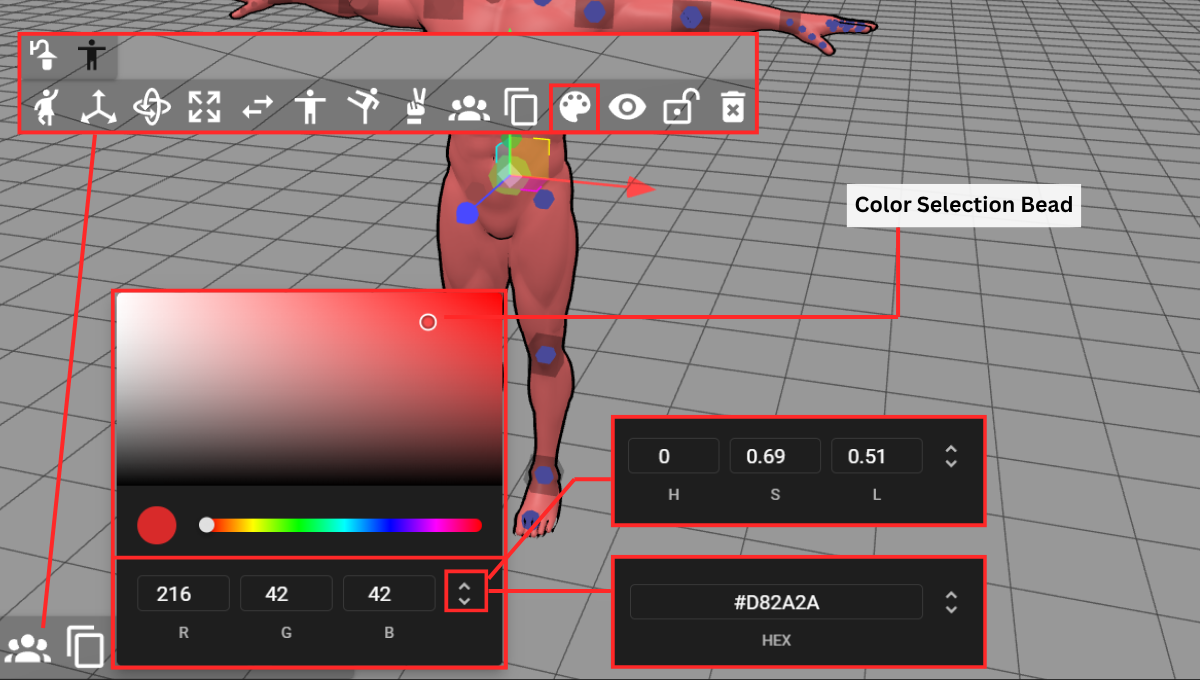
 You can toggle between the three choices below by clicking the arrows on the lower right side of the color control box.
How to:
- Click on/ load up the model that you want to color.
- On the Model Toolbar, click on the paint palette icon, Color. This will bring up a pop-up window with the color selection.
- Click and drag the color selection bead OR click on the arrows to toggle between the different color types. You can type in a color code instead of using the color selection bead.
RGB
If you’re familiar with red, green, and blue values (0-255), this is your go-to for precise color mixing.
HSL - Hue, Saturation, Lightness
A more intuitive way to pick colors! Adjust the hue for the color itself, saturation for its intensity, and lightness for how bright or dark it is.
Hex Code
For designers and artists who work with specific color palettes, you can directly input or copy/paste hex codes (like #FF0000 for red).
12. Show (H)
If you want to temporarily hide a model or prop without deleting it, just select it and clik the eye icon or hit ‘H’. Hit ‘H’ again to bring it back! It’s great for decluttering your workspace, especially when you want to focus on one character or prop.
13. Lock
Ever accidentally move something you’ve perfectly placed? Select it and click “Lock.” Now it won’t budge, no matter what you do, until you unlock it. Super handy for complex scenes.
Tip
It’s easy to accidentally lock just your model and forget its props! Always make sure you’ve selected the correct group or individual items before hitting ‘Lock’ to keep everything perfectly in place.
14. Delete (Del)
 As simple as it sounds! Select a model, prop, or group you no longer need and click the trashcan icon or hit the ‘Del’ key to remove it from your scene.
Upper Left Toolbar
PoseMyArt has a bunch of other powerful features available that can really elevate your scene creation and export process. Let’s explore them!

1. Add Models
 Bring new models into your scene (different from ‘Change Model,’ which replaces your current one). When you click this button, you’ll bring up a menu that you can scroll through and choose a model type.
Note, some models are part of the free version, but others (marked with a crown), are only usable when you Go Premium.
2. Add Props
 Access a library of pre-made objects like furniture, clothing, or weapons. These can be used to help build a scene, or accessorize your character model.
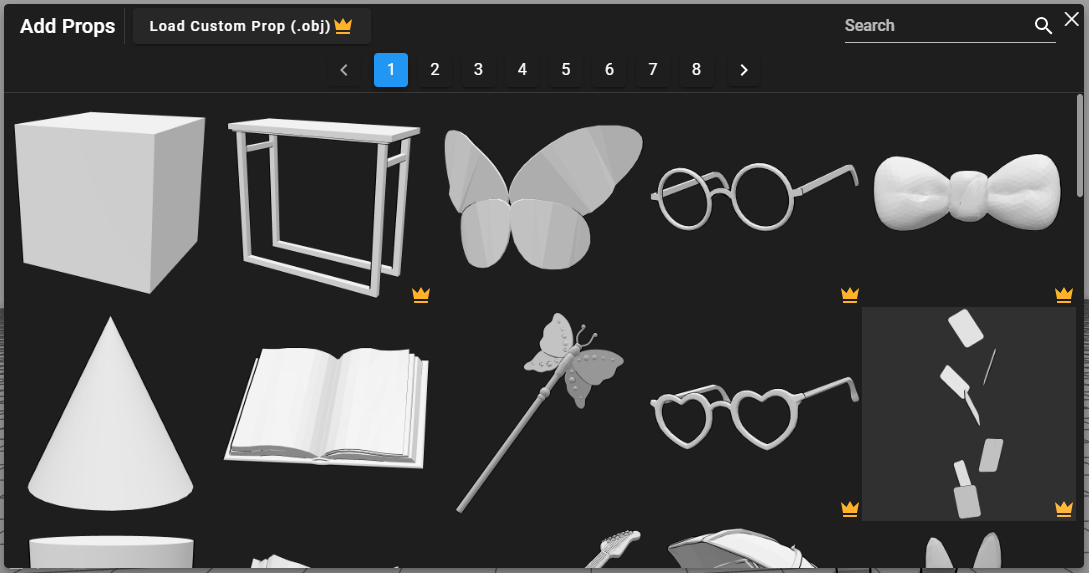
Note, these props don’t have their own joints and can only be moved as a whole object. However, you can scale them by clicking on the prop and pressing the S key. Click and drag on the X, Y, Z axis boxes to scale along a particular plane, or the grey boxes to scale the prop as a whole.
Load Custom Prop
Got your own 3D model props? This button, on the top of the menu, lets you import them into PoseMyArt to use as props!
Just a heads-up, these 3D props need to be in OBJ format to work seamlessly. You can download 3D models of props from various online sources or even create your own using software like Blender, Autodesk Maya, 3ds Max, and Rhino.
Attach Prop to Model Joint
This feature allows you to attach a prop to a chosen model joint or manipulation point. This is useful for when you want attached props to move along with a point when the model’s pose is altered.
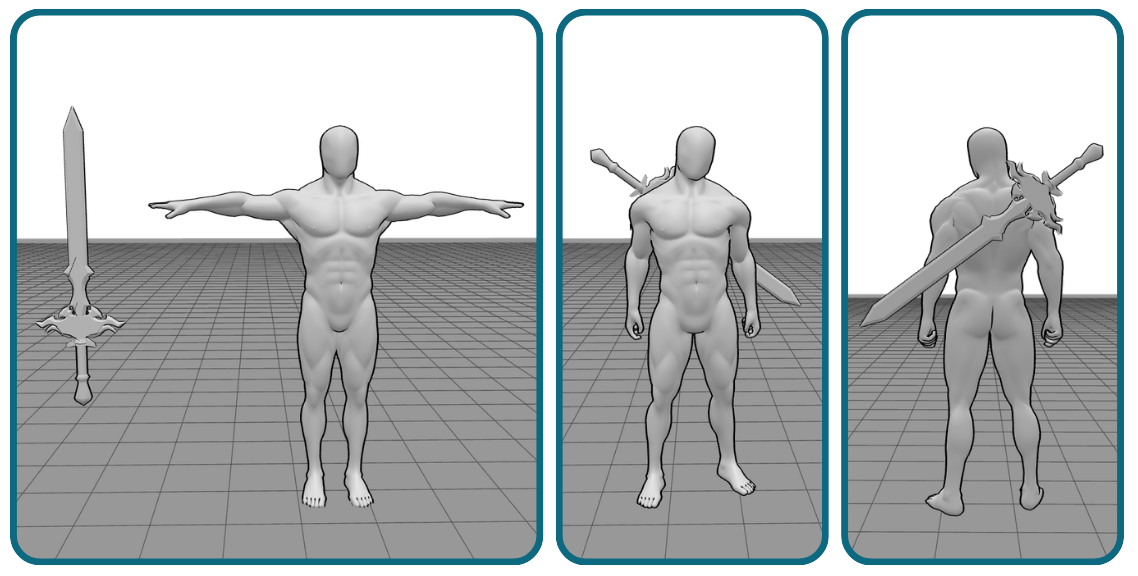
How to:
-
Click on the prop that you want to attach, this should bring up the sub-menu located at the bottom left of the PoseMyArt app screen.
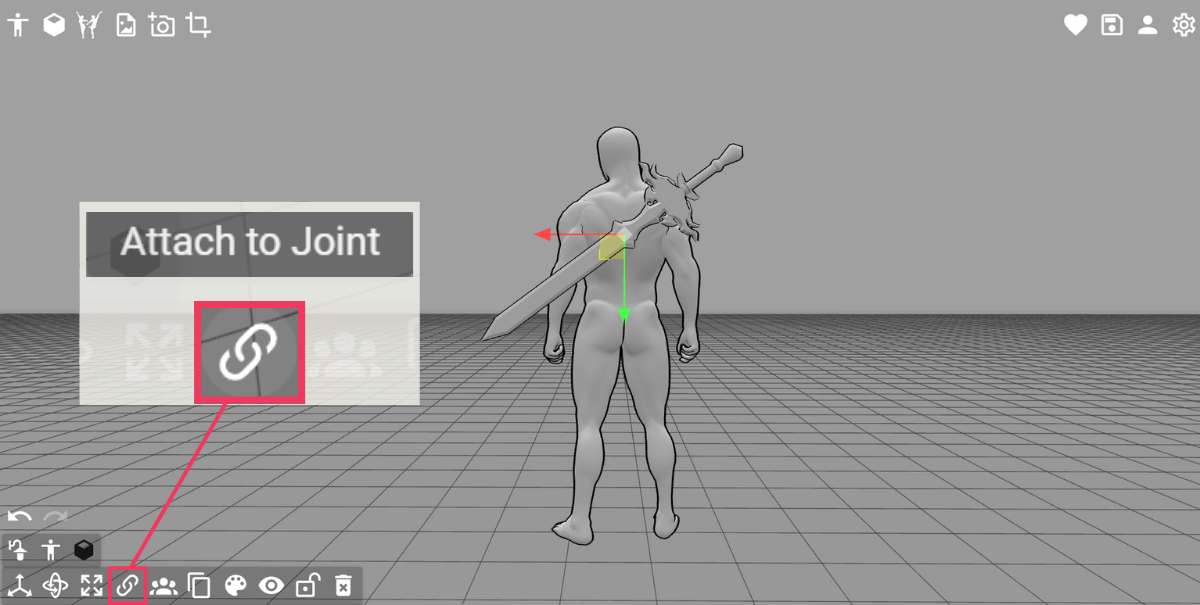
- Look for the Attach to Joint icon on the sub-menu and click on it. This action should make the available models you can attach your prop to blink and glow bright cyan.
-
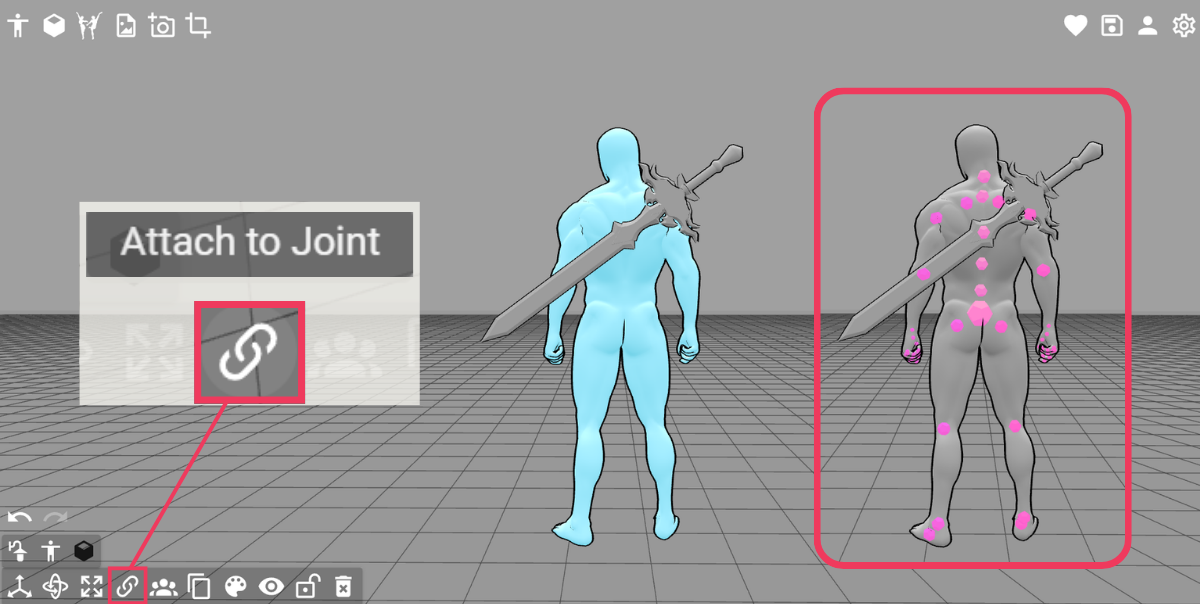
Click on the model you want to attach your prop to, this action should make the model’s joint points glow pink.
-
Select and click on the model joint you want your prop attached to. When your prop is successfully attached, the Attach to Joint icon and text will change into Detach from Joint
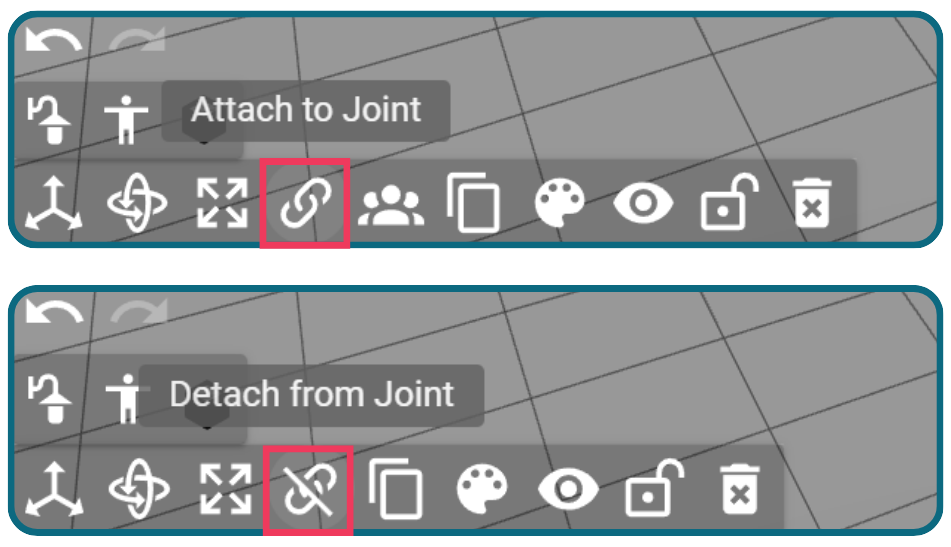
- If you want to detach a prop from a joint, simply click on Detach from Joint.
3. Premade Scenes
 Why build from scratch when you can start with a fantastic set up? Clicking this button reveals a menu packed with premade scenes. These range from single characters with props, like a maid holding cakes, to complex setups such as a group of friends chilling on a couch.
 Some of the options included in the Premade Scenes menu can be seen at the top bar. You can toggle them on and off.
Open Images Library
Clicking this option opens the PoseMyArt library of scenes in a separate web browser tab. You can scroll through and pick from thousands of choices.
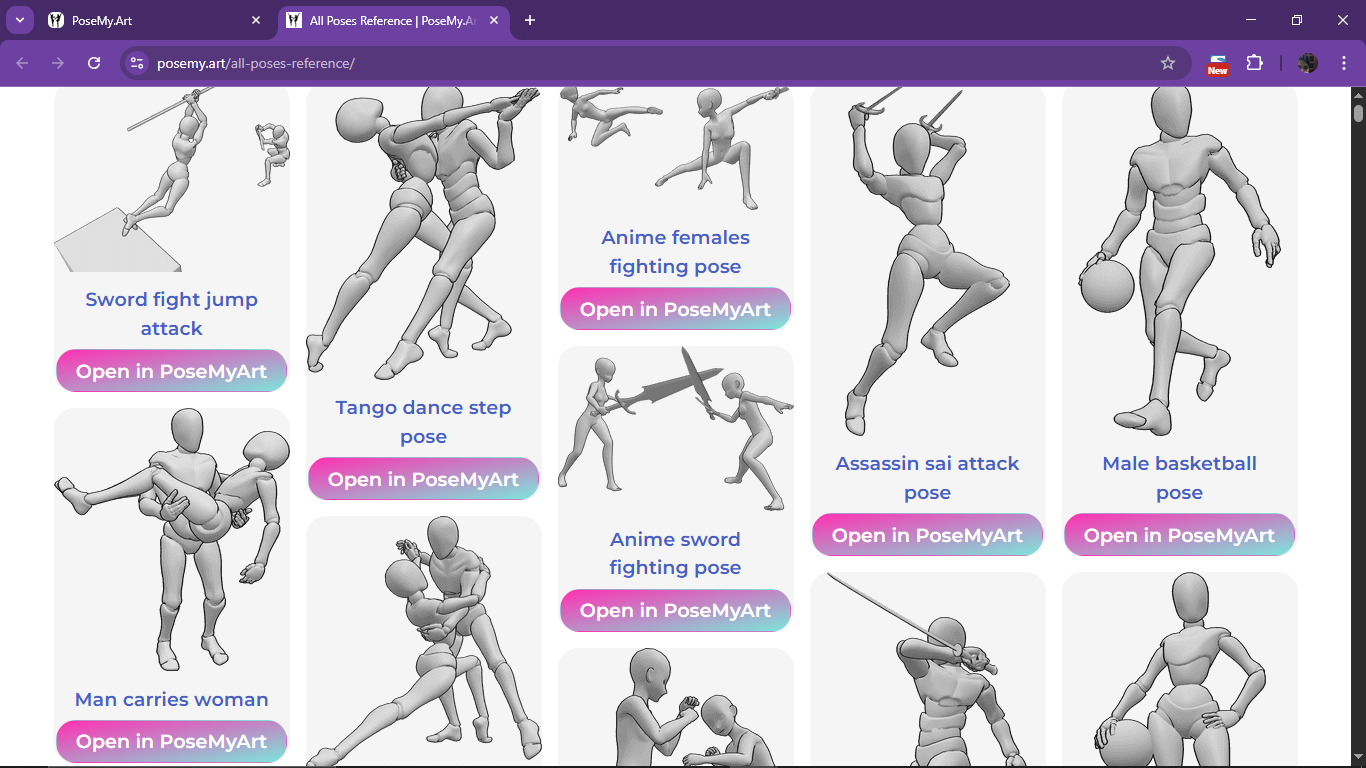
Once you’ve picked a scene you want, click on the “Open in PoseMyArt” button below the preview image. This will open another web browser tab with the PoseMyArt app, loaded with your chosen scene.
Replace Current Scene
This option will replace your entire current scene (all models and props on your workspace) with a new premade scene. If you’re looking to add to your current workspace instead of completely replacing it, remember to toggle this setting to gray.
Add Scene As Group
Instead of replacing, this adds a premade scene as a new group in your current setup. By default, this option automatically groups the added scene, making it super easy to move, scale, or rotate everything together. If you prefer to add the scene’s elements individually, just uncheck this setting.
4. Add Image (Premium)
 This is a premium feature that allows you to import your own images into the scene, perhaps as a reference plane or a custom background. Just keep in mind that these images remain 2D within your 3D environment.
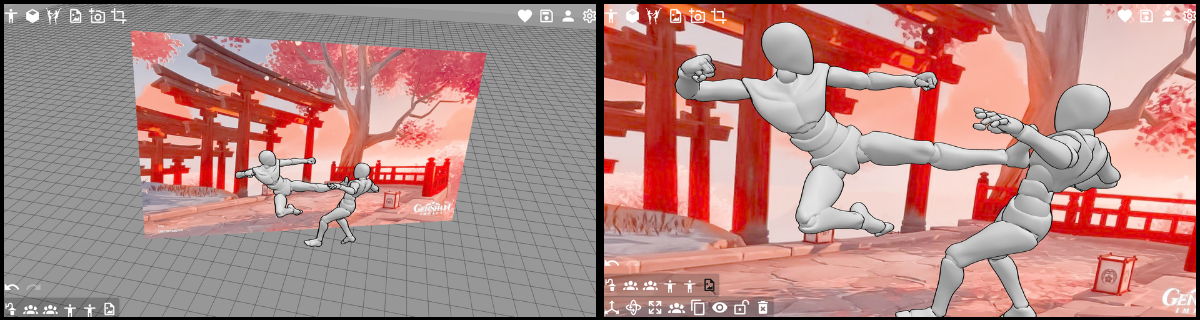
How to:
- Click on the Add Image icon located on the upper left toolbar. This will bring up another window where you can select an image from your device.
- Select your desired image and click Open to import the image into the PoseMyArt workspace.
- You can manipulate the image with tools like Move (G), Rotate (R), Scale (S), Duplicate (Shift+D), Show/ Hide (H), Lock/ Unlock, and Delete (Del).
5. Camera
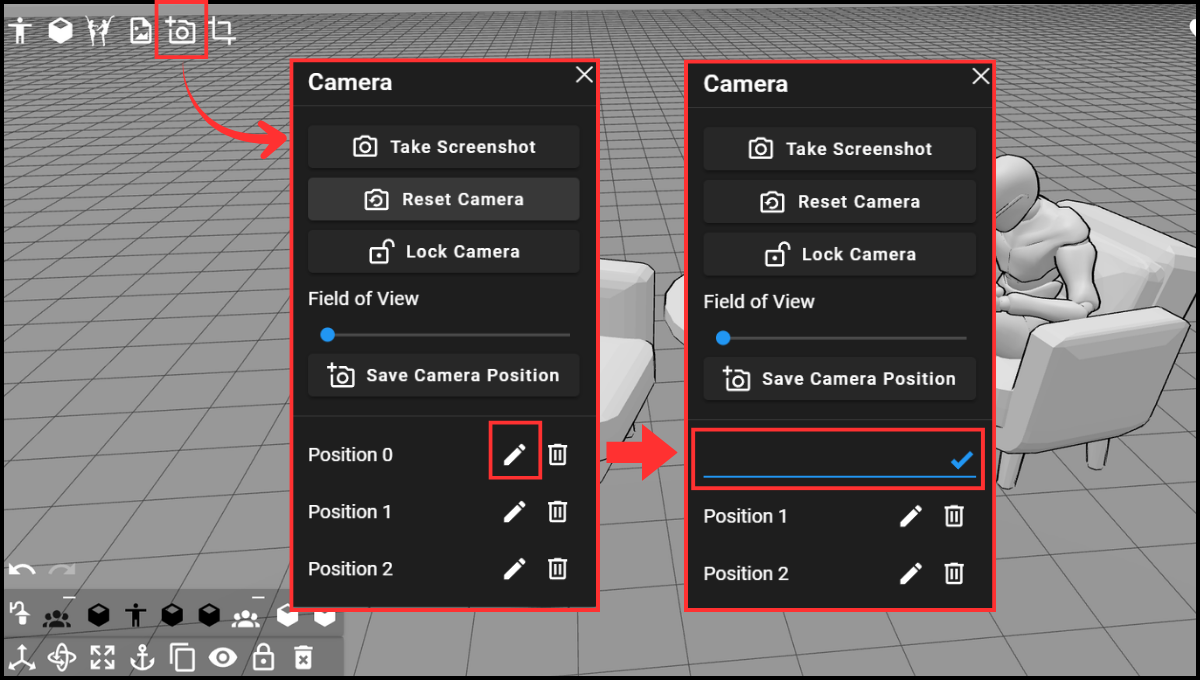
 You can find all of your camera-related features and settings when you click this icon. Here is what you’ll see when you click the camera icon.
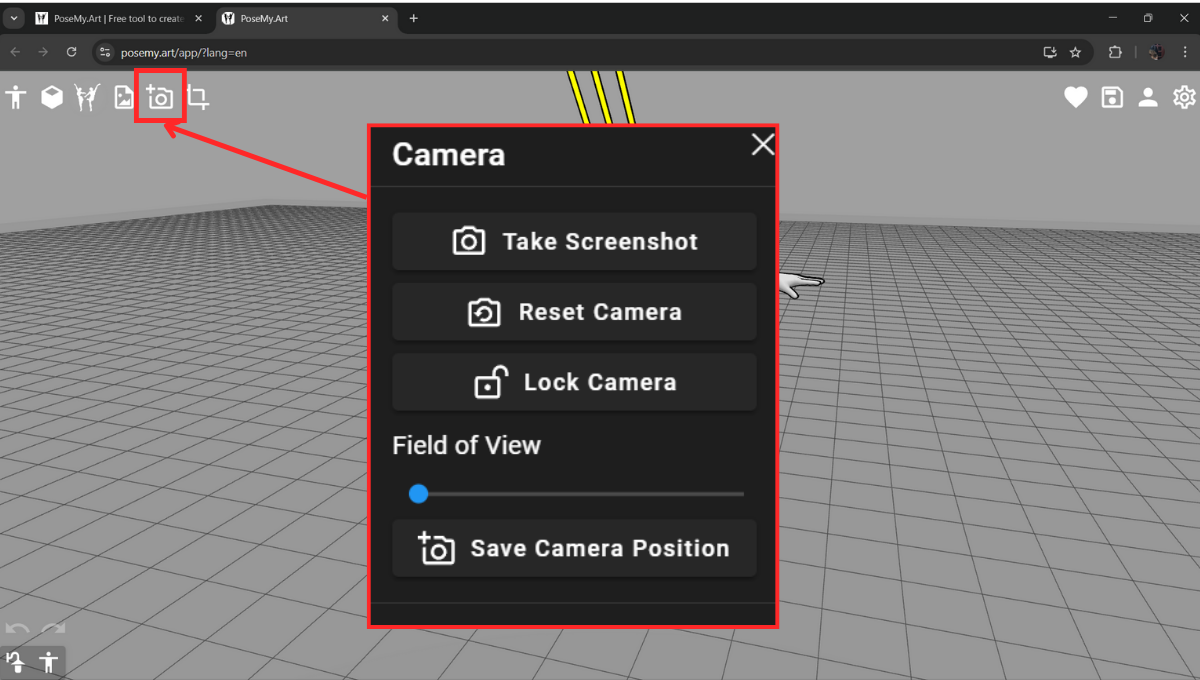
Take Screenshot
Need a quick capture of your current view? The “Screenshot” button does just that! It saves an image of your current app window, perfect for sharing progress or snagging a quick reference.
Reset Camera
Clicking this button reverts your camera’s view to the default starting camera position that you start with when you open the PoseMyArt app.
Lock Camera
When you click this button, the icon also toggles to “locked” when it’s activated and the text also changes to “Unlock Camera”. Useful when you find a view/ angle you like and want to work without accidentally moving the camera.
Field of View
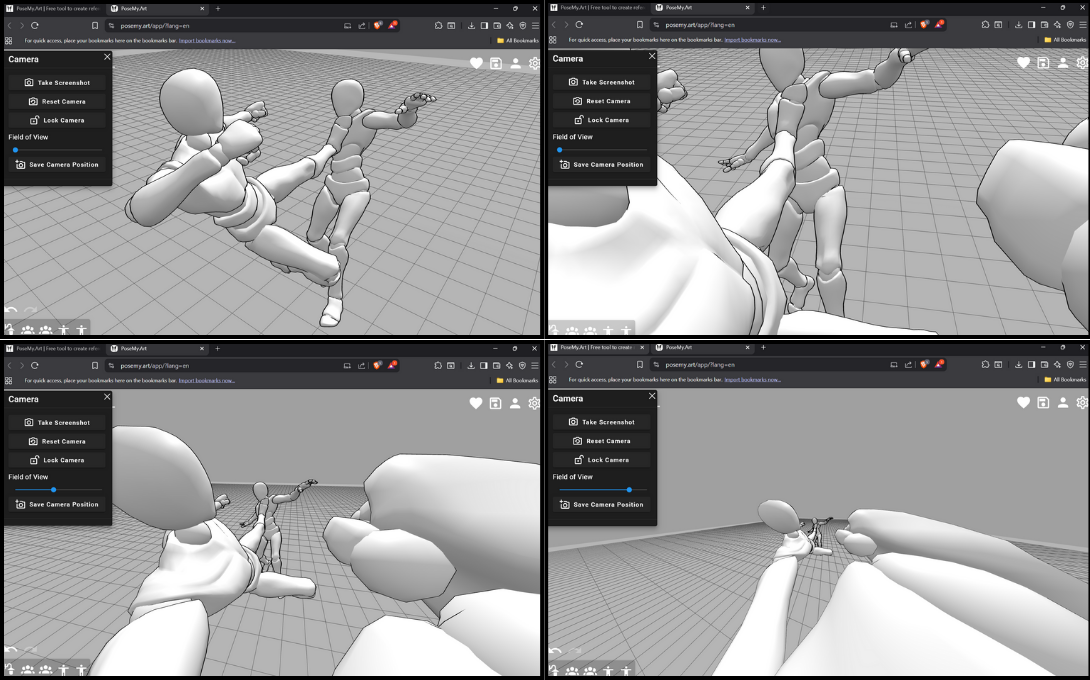
The Field of View (FOV) slider is a tool in PoseMyArt that lets you adjust the perspective of your scene. Moving the bead on the slider more to the left creates to a narrower (lower) FOV that flattens the scene’s perspective. This view is excellent for more traditional figure drawing practice or focusing on character design and proportions.
Alternatively, sliding the bead more to the right creates a wider (higher) FOV. This is what you want when you need drama. It creates a cool, exaggerated foreshortening effect, pulling the nearest limbs closer to the “camera.” This is perfect for giving you those super dynamic, “in-your-face” action shots that convey speed and motion in fight scenes.
Save Camera Positions
Found the perfect angle? Save it! This lets you quickly return to a specific viewpoint later, which is invaluable for consistent renders. Each time you save, PoseMyArt automatically labels your new viewpoint as “Position 0,” “Position 1,” and so on, making them easy to find later.
Rename Camera Positions
The default names for saved camera positions are “Position 0”, “Position 2”, and so on. To better identify each position, you can rename camera positions.
How to:
-
Click on the Camera icon located at the upper left corner of the PoseMyArt app workspace.
-
In the Camera pop-up menu, locate the list of saved camera positions under the “Save Camera Position” button.
-
Pick the camera position you want to rename, click the pencil icon beside it. This will bring up a blank space for you to enter the new name for the saved camera position.
-
Type in your desired new name. Click the check icon when you’re done to apply the change.
6. Export
 This is where your hard work becomes a shareable masterpiece! Clicking on the Export button pulls up a menu with different options. PoseMyArt offers a variety of export options to suit different artistic needs.
For the following export options and image types, we’ll be using one scene to compare- a simple two-character, two-model scene.

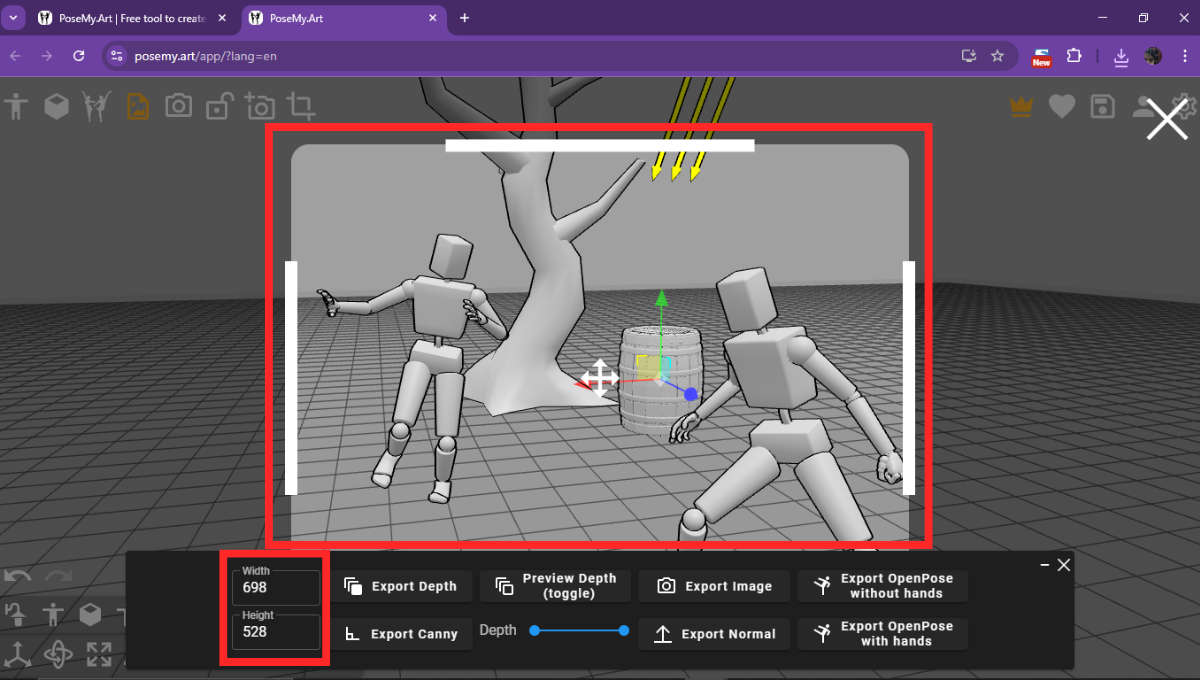
Width / Height
Set the exact dimensions for your exported image, ensuring it fits your project requirements. The dimensions are in pixels. You can also use the thick white lines along the sides and top of the highlighted window.
By dragging these thick white lines, you can adjust the width and height of the image or area you want to export.
Export Depth
This option creates a depth map image, where lighter areas are closer and darker areas are further away. This is super useful for adding depth of field effects in other editing software.
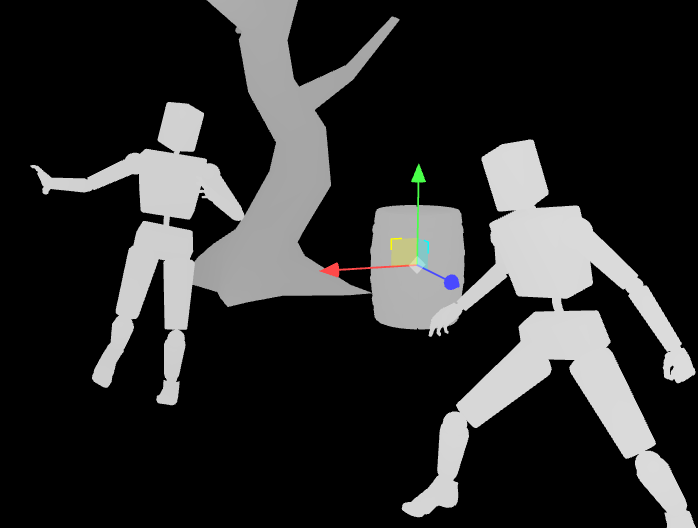
Preview Depth (toggle)
This handy toggle lets you see the depth (light and shade) of your model directly in the viewfinder. Turning this option off will make your image appear flatter.
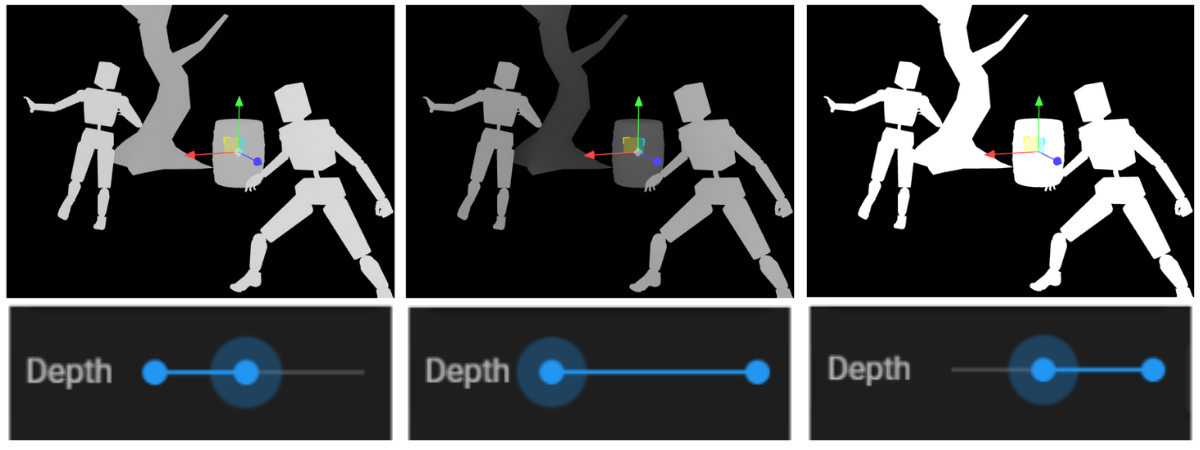
Depth (Slider)
This slider lets you fine-tune the range and intensity of your depth map. As you adjust it, you’ll see closer objects become lighter and those further away appear darker (in the Export Depth images), giving you precise control over the depth effect.
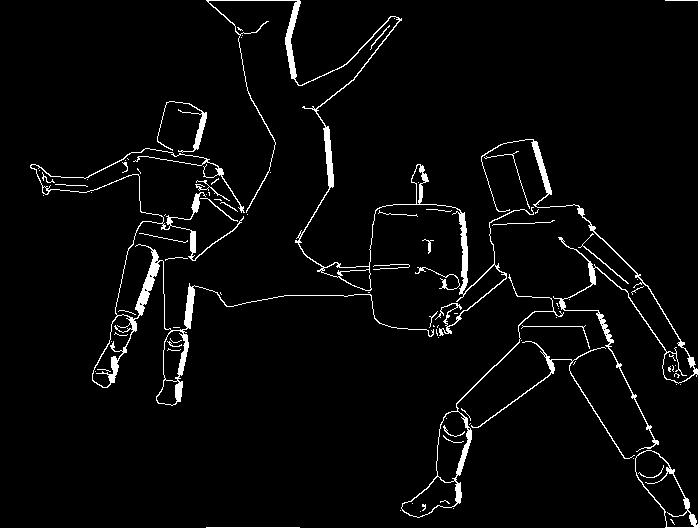
Export Canny
Exports a Canny edge detection map. This is fantastic for artists who want clean line art to trace over or use as a base for their drawings.
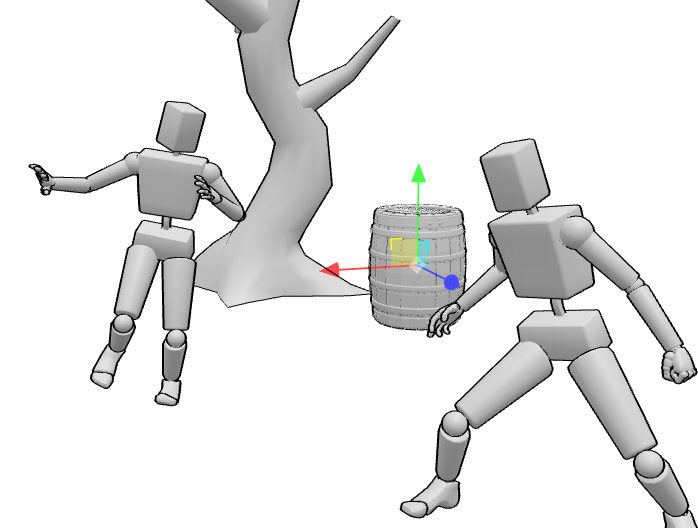
Export Image
The standard export, saving your current view as a regular image file. Note, the sky, as well as the ground become transparent. So if you want the perspective lines on the ground as reference, it would be better to take a Screenshot.
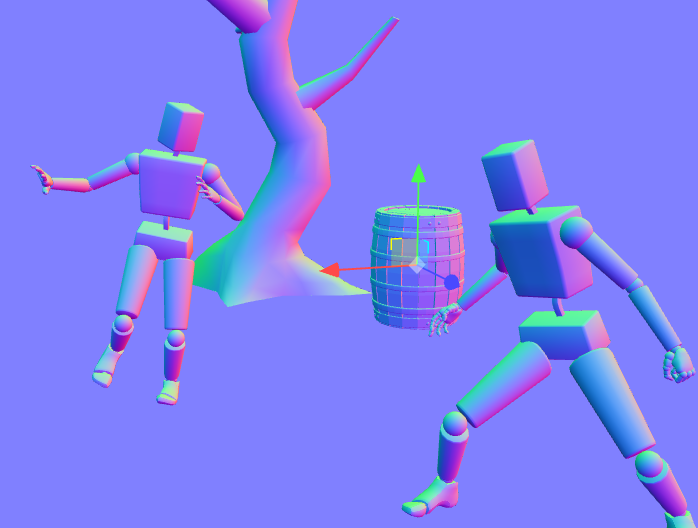
Export Normal
Exports a normal map, which contains information about the surface orientation of your model. This is advanced but incredibly useful for realistic lighting and rendering in 3D software.
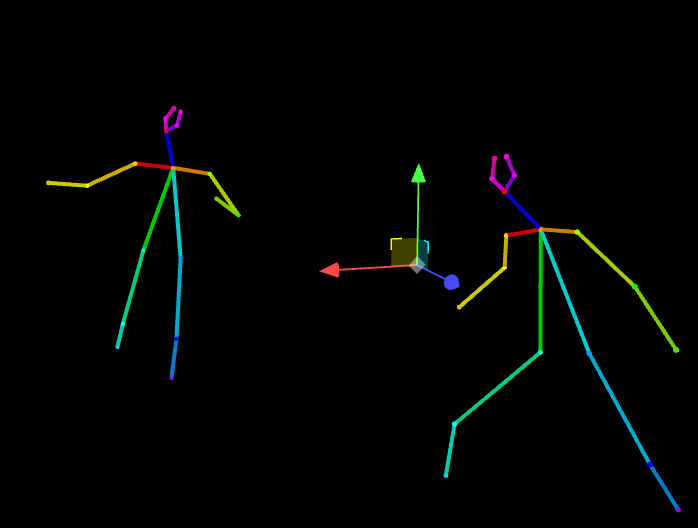
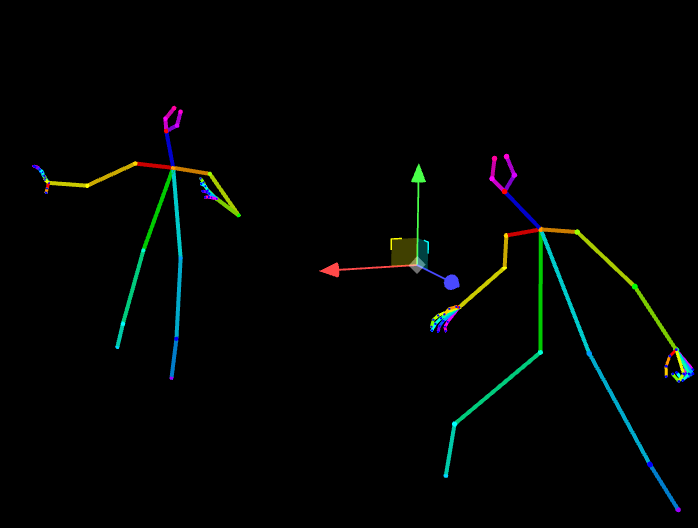
Export OpenPose without hands
Generates an OpenPose image, which shows the skeletal structure of your model’s pose. This is a game-changer for artists studying anatomy or using AI art tools.
Export OpenPose with hands
Similar to above, but includes detailed hand skeleton data, perfect for capturing intricate finger poses.
Upper Right Toolbar
These are the final features to complete your tool kit for PoseMyArt. You’ll find this set of icons on the upper right side of the app screen.
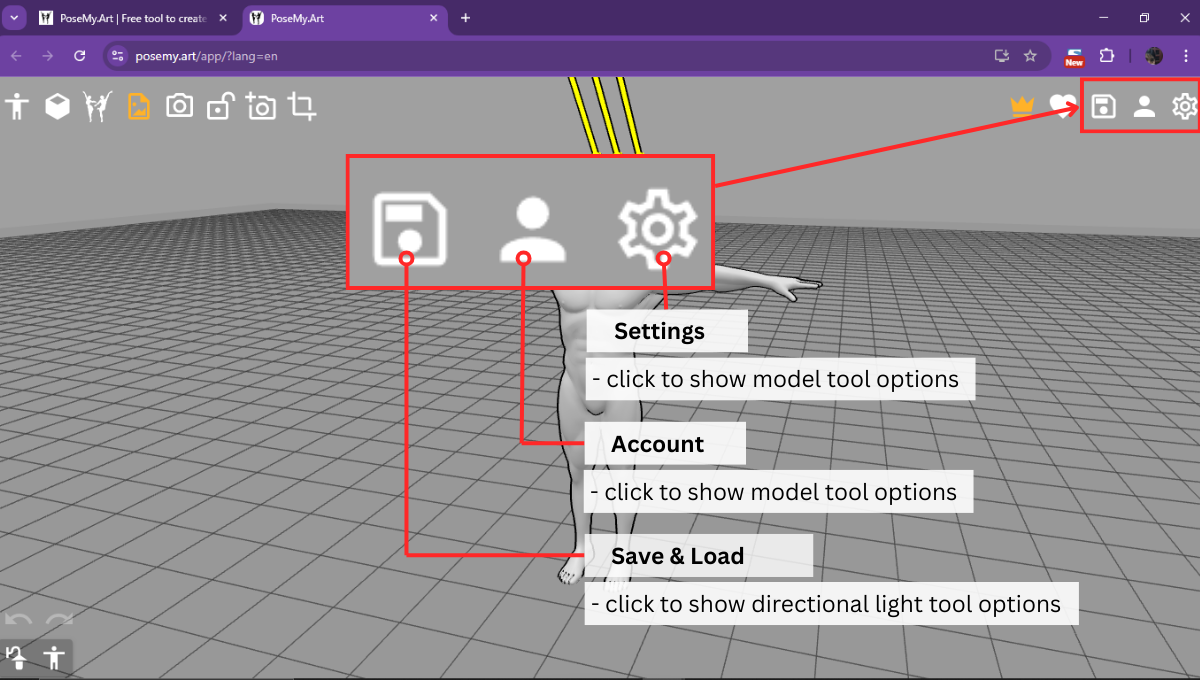
1. Save & Load
 When you’ve spent time and effort creating the perfect pose reference or scene, you want to be able to save that. Sometimes, just saving an image or taking a screenshot isn’t enough. Luckily, PoseMyArt has some useful features to note when you click the Save and Load icon.
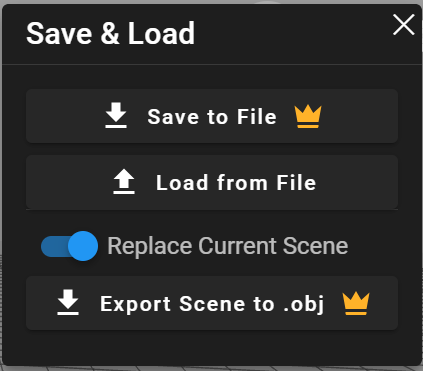
Save to File/ Load from File
These two are essential. The Save to File button allows you to save the entire pose or scene your created. This includes all its props and images you may have imported.
With this, you can create your own personal library of poses and scenes that you can open in the PoseMyArt app later for further editing using the Load from File feature.
Replace Current Scene
This slider of this setting is set on active by default. When this setting is active, this means that if you Load from File, any models or scenes currently on your screen will be replaced entirely by the new file that you load.
If you want to add the contents of your file to the pose or scene you currently have on screen, deactivate the Replace Current Scene setting. You’ll notice that once you turn this setting off, it will automatically activate and show another setting - Add Scene As Group.
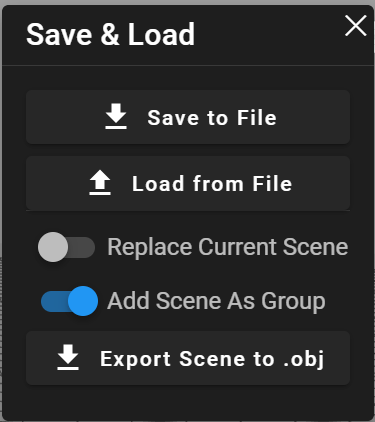
This additional setting is important as keeping it on automatically means that the scene loaded from your file will be added as a group. As a group, you will be able to move all the models and props from the added scene as a whole.
Export Scene to OBJ
This feature allows just as it says, exporting your scene on PoseMyArt and creating an OBJ file. This is a 3D model file format, so you can open files in this format in all kinds of 3D modelling software like Blender, Sketchup, Maya, and 3ds Max.
2. Account
 Clicking the Account button will pull up a menu of different options. Through this, you can sign in to your PoseMyArt account with Google, Apple, Facebook, or email.

This is essential, especially if you’ve upgraded to Premium. You won’t be able to access the premium features of the app if you don’t sign in to your upgraded account first.
3. Settings
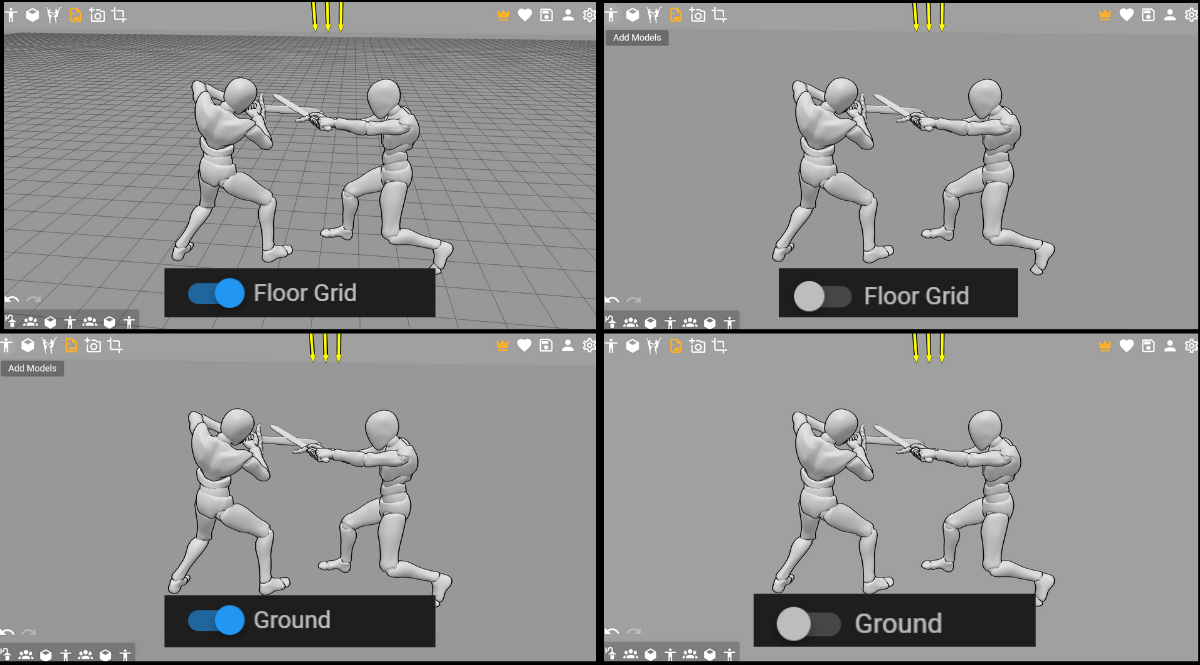
 These has a few more details that you can tweak in the app. Most of the features in the Settings menu are active by default. Clicking the gear icon brings up this menu.

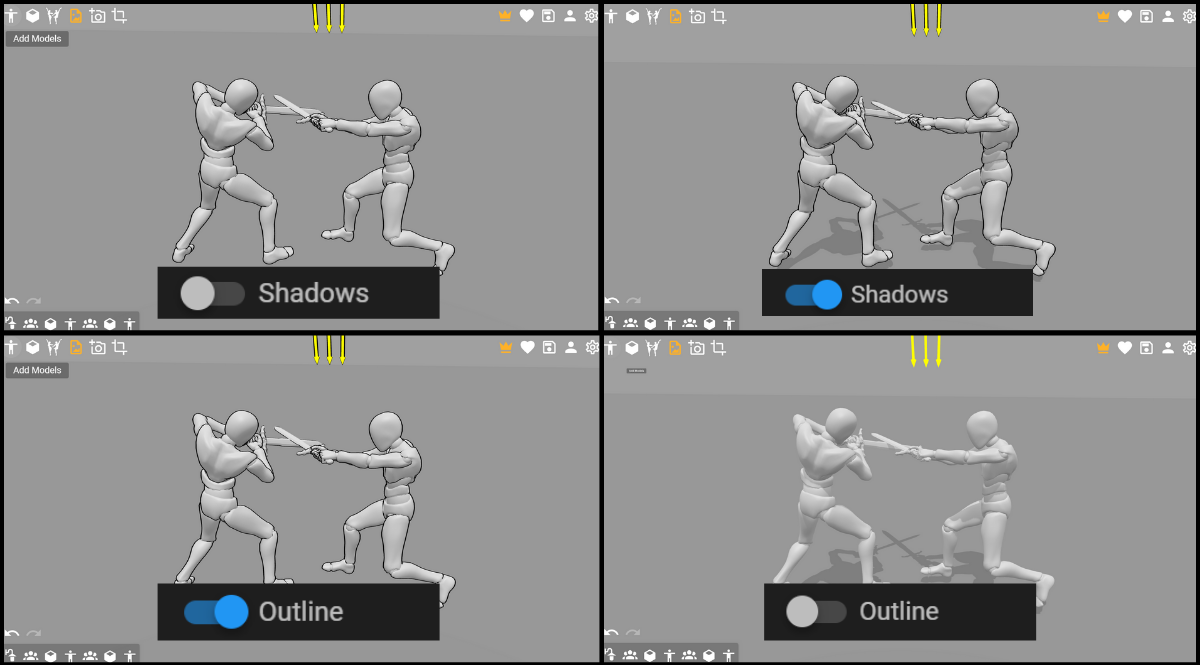
If you’ll notice, Shadows is the only feature on the Settings menu that isn’t active by default. As it says on the display, this is because activating Shadows might slow the app.
Keeping Load Model on Start active means that every time you open the app or refresh the page, the default model (Realistic Muscular Male), will appear on the center of your screen in the standard T-pose. Deactivating this setting removes that model, giving you a more blank workspace instead.
The rest of the Settings are better demonstrated through images instead of words.
Final Thoughts
Phew! We’ve covered a lot of ground, haven’t we? From the basic moves to advanced export options, PoseMyArt is truly packed with tools designed to make your 3D posing experience as smooth and powerful as possible.
As an artist with over 20 years of experience, I can honestly say that PoseMyArt’s features are a gem, especially for someone who draws a lot of character art. Even after all this time, I still find new ways these tools help bring my characters to life, especially when it comes to finding, or creating, just the right pose reference.
Remember, the best way to master these features is to jump in and play around! Don’t be afraid to experiment with different settings, try out new poses, and explore how each tool can enhance your creative workflow. The more you use them, the more intuitive they’ll become, and you’ll be able to create more complex pose references more easily and quickly.
A more exact reference opens up the possibilities for more stunning art!
If you find yourself constantly wanting more options for models, props, or images, it might just be the perfect time to consider upgrading to PoseMyArt Premium. Going premium unlocks a wider world of creative possibilities! Happy posing, and keep creating amazing things!